Floor Plan Editor
Real Playwright capture of the floor-plan workflow
Overview
This tutorial walks through the Floor Plan Editor inside confBuild. The screenshots were captured in a real Playwright-driven browser session on March 16, 2026 from the localhost editor and show the current workflow: open the scene tools menu, launch Floor Planner, choose a starter template, and then refine levels and drawing tools before applying anything back to the sheet.
Project
Dedicated lightweight architecture project opened in the standard 3D editor
Workflow
Open the scene tools menu, launch Floor Planner, choose a template, review levels, and activate the right editing tools
Goal
Prepare walls, rooms, openings, dimensions, and labels in a dedicated 2D planning view
Step 1: Open Floor Planner from the scene tools menu
The current entry point for this workflow is the scene gear menu in the top-right controls. From there, Floor Planner opens directly from the same 3D editing session without switching into the left sidebar workspace first.
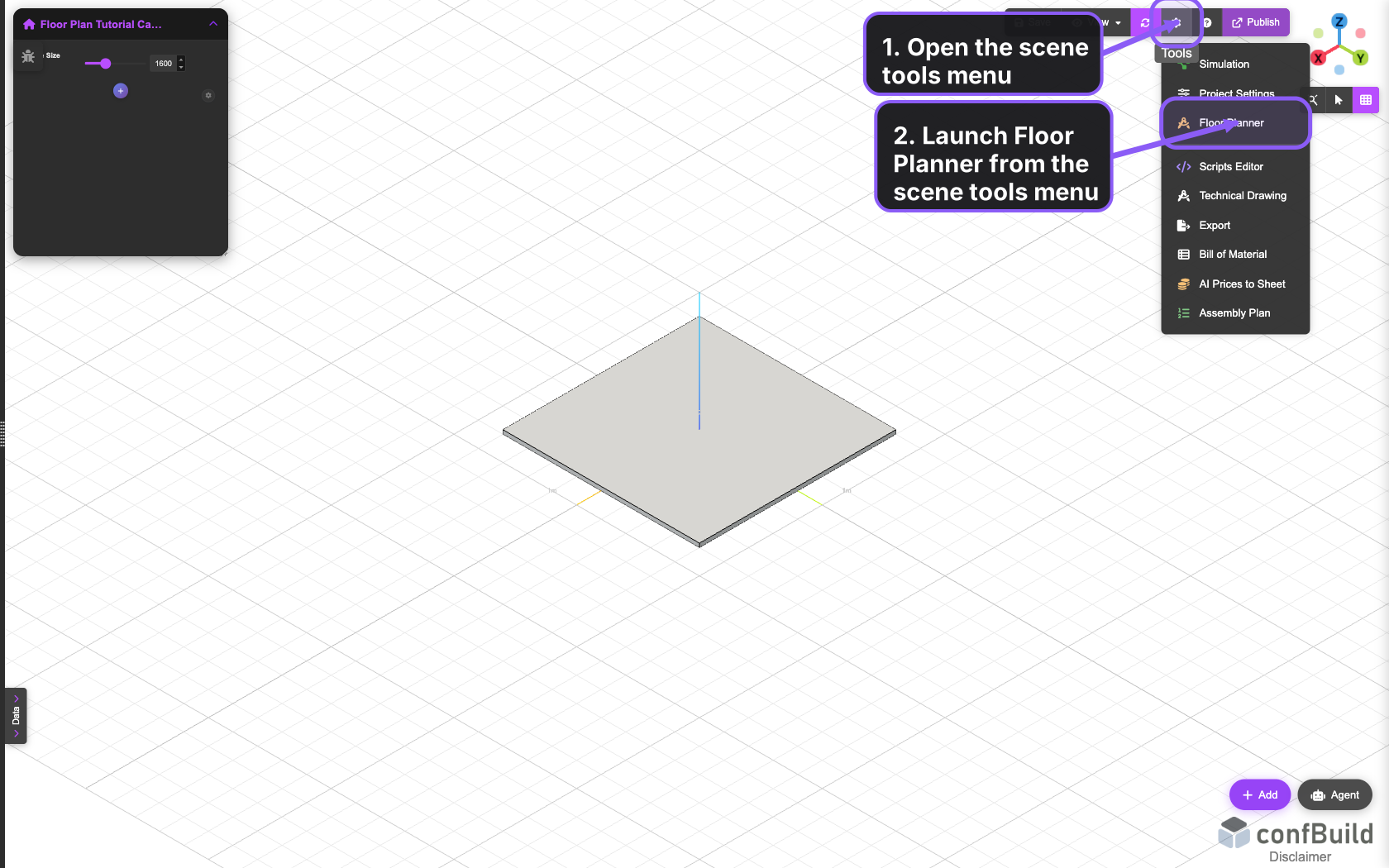
The scene gear menu keeps Floor Planner next to the other scene-level actions, so you can jump into planning without leaving the main editor view.
Step 2: Set the plan name and choose a starter template
The editor opens on the Templates tab first. This is where you name the floor-plan project, narrow the template category, and start from a built-in apartment, house, office, or commercial layout instead of drawing every wall from scratch.
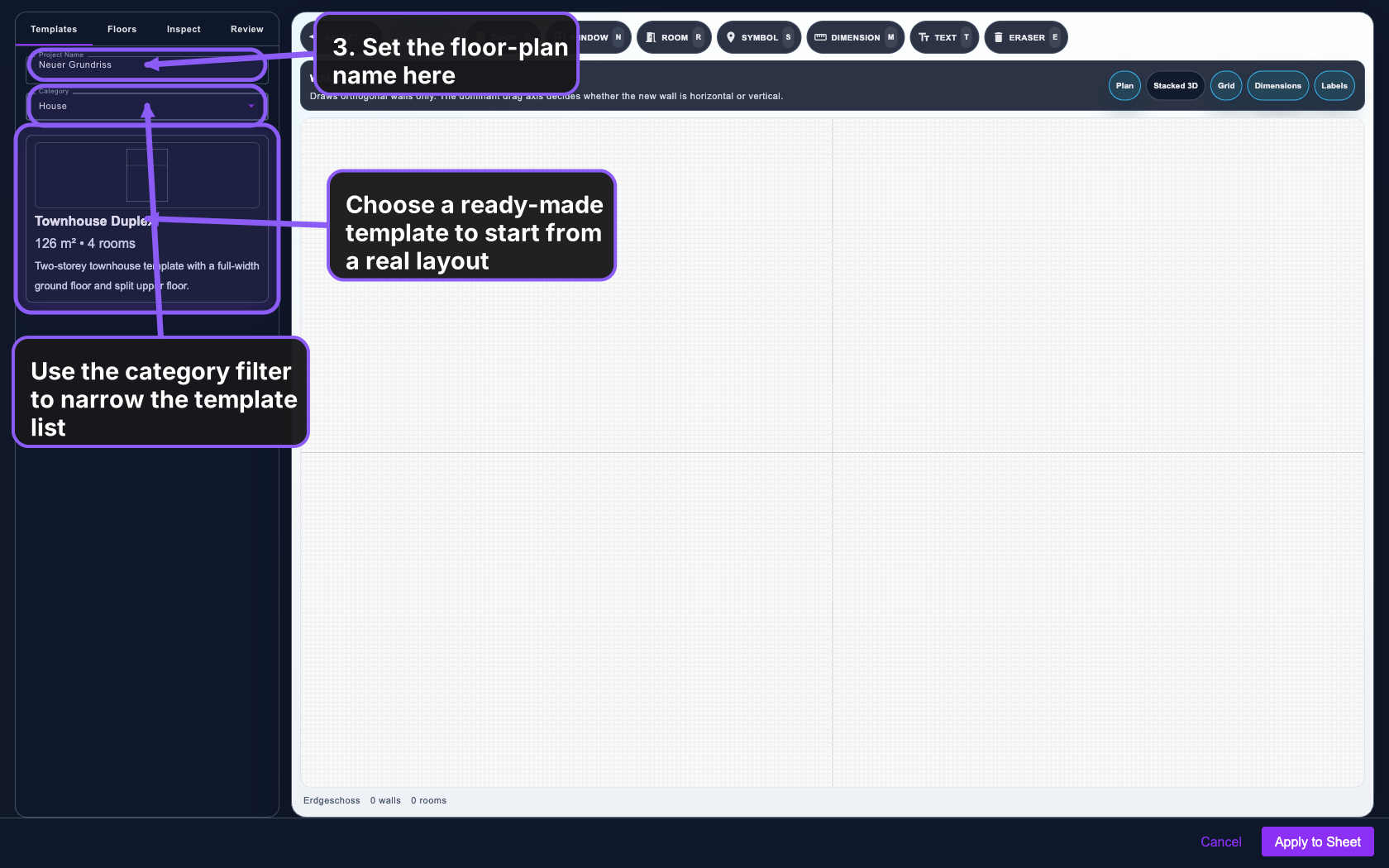
In this capture the category filter is set to House and the Townhouse Duplex template is selected as the starting point.
Good setup before editing
- Give the floor plan a descriptive name so later sheet exports stay readable.
- Use a starter template when you want structure quickly and only need to adapt it.
- Wait to use
Apply to Sheetuntil the wall and room layout looks correct.
Step 3: Use the Floors tab, toolbars, and view controls
After choosing a template, switch to the Floors tab. The sidebar now focuses on level management, defaults, and snapping, while the top toolbar gives direct access to wall, door, room, symbol, dimension, text, and cleanup tools.
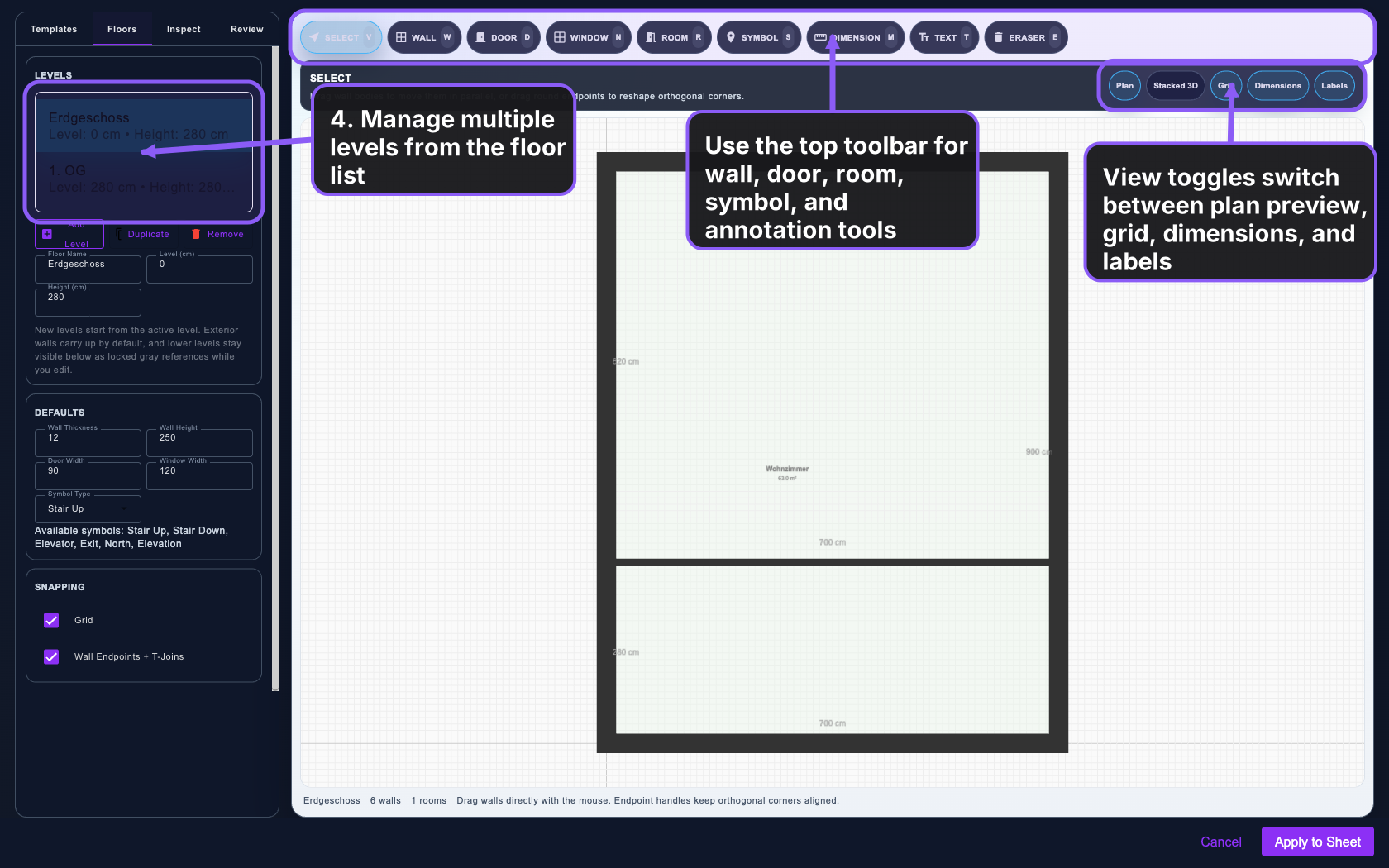
The view toggles help you switch between plan preview, grid, dimensions, and labels while drafting. Once the layout is ready, Apply to Sheet pushes the managed floor-plan result back into the active project.
What the key controls do
Levelshelp you manage multi-storey plans in one floor-plan project.Wall,Door,Window, andRoomdefine the main layout geometry.Symbol,Dimension, andTextsupport readable 2D communication.Grid,Dimensions, andLabelskeep the plan legible while editing.
Next steps after the floor plan
After the layout is stable, apply it to the sheet and continue with the downstream output that fits your workflow. A finished floor plan can feed both documentation and 3D presentation tasks.
Recommended follow-up tutorials
- Technical Drawing with Standard Views for a clean orthographic sheet.
- Scene Settings Panel for presentation-ready viewport styling.
- Export 3D Models for STEP, IFC, STL, glTF, or 3MF handoff.