OpenFOAM CFD Tutorial
Mesh a fluid domain, assign OpenFOAM patches, and inspect CFD results
Overview
This tutorial walks through a real OpenFOAM CFD example in confBuild. The screenshots were captured from the browser on 2026-06-21 using an example project named OpenFOAM Step Duct Tutorial Example, based on the OpenFOAM pitzDaily backward-facing step duct.
Time
About 20 minutes for a prepared model with clear inlet, outlet, and wall faces
Example mesh
blockMesh and checkMesh produced 25,012 points and 12,225 cells
Example result
simpleFoam reached time 20 with a 0.317% inlet/outlet flow-balance error
Example artifact
- Case: OpenFOAM
pitzDailystep duct, steady incompressible flow. - Commands completed:
blockMesh,checkMesh,simpleFoam, andfoamToVTK. - Velocity summary: mean 5.496 m/s, max 11.171 m/s. Pressure range: -9.937 Pa to 19.424 Pa.
- Result loaded in confBuild as a completed CFD task with VTU field visualization.
Step 1: Open the real step-duct example
For CFD, the mesh represents the fluid volume, not the solid part. In this example the editor is loaded with a step-duct fluid domain, OpenFOAM solver settings, a 10 m/s inlet velocity, a 0 Pa outlet pressure, and named boundary roles for inlet, outlet, and no-slip walls.
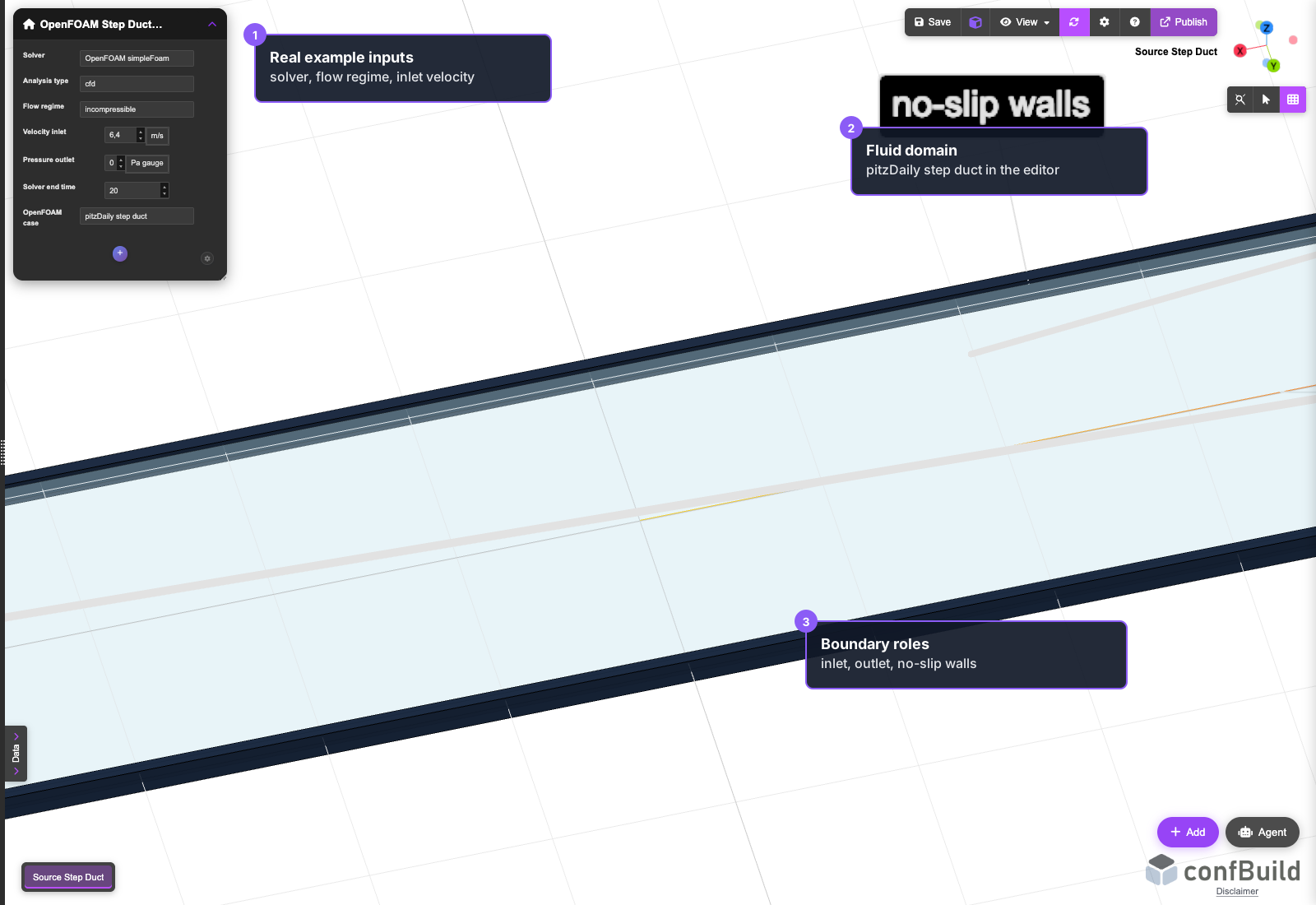
This is the actual browser screenshot from the example project, not a mockup. It shows the source setup before reviewing mesh and solver output.
Before you mesh
- Use one closed volume for the region where the fluid should flow.
- Name or identify the inlet, outlet, and wall surfaces clearly.
- For thin 2D-style CFD, keep the front and back faces available as
emptypatches. - Start simple. Run the first case on a coarse or medium mesh before adding local refinements.
Step 2: Check mesh and face-group readiness
Open the mesh/load setup and confirm that the generated mesh exposes usable face groups. CFD boundary conditions need mesh metadata, not only visible geometry. If no groups appear in this panel, remesh with face-group output or provide OpenFOAM mesh artifacts with explicit patch roles.
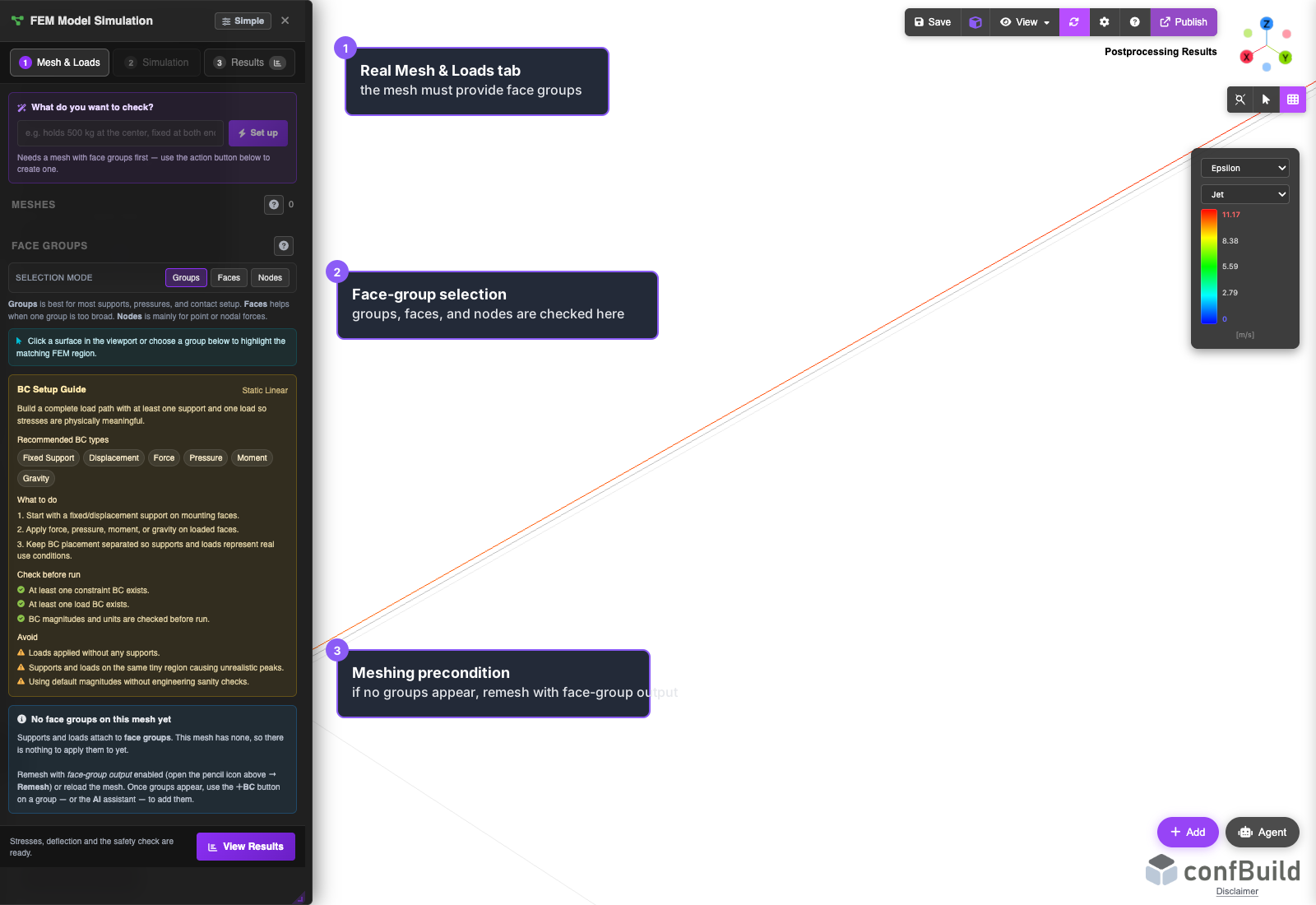
The screenshot is a real Mesh & Loads state. It documents the face-group gate before boundary assignment rather than pretending that every mesh is already ready.
Meshing checks
- The selected object should be the flow volume, not an obstacle solid.
- Face groups should survive mesh generation so CFD boundary conditions can reference them later.
- For the tutorial example, the OpenFOAM case itself defines the patches:
inlet,outlet, wall patches, and pairedemptyfront/back patches. - Local refinements and boundary layers should be added only where they improve the intended result.
Step 3: Assign OpenFOAM regions and boundaries
Switch to the simulation setup and use the CFD flow path. The volume region becomes the OpenFOAM fluid region, while face groups become OpenFOAM boundary patches such as inlet, outlet, wall, symmetry, far_field, or empty.
Minimum boundary setup
- At least one inlet or far-field patch should define a non-zero flow velocity.
- An outlet or pressure-reference patch should let the pressure field close cleanly.
- Wall patches should cover solid surfaces that the flow touches.
- For 2D setups, the thin front/back faces should use
empty. - In the captured example,
upperWallandlowerWallare no-slip walls andfrontAndBackusesempty.
Step 4: Run OpenFOAM
When the setup is complete, confBuild creates an OpenFOAM case from the mesh and boundary metadata. In this captured example, the OpenFOAM runner completed blockMesh, checkMesh, simpleFoam, and foamToVTK, then exported the velocity field from internal.vtu.
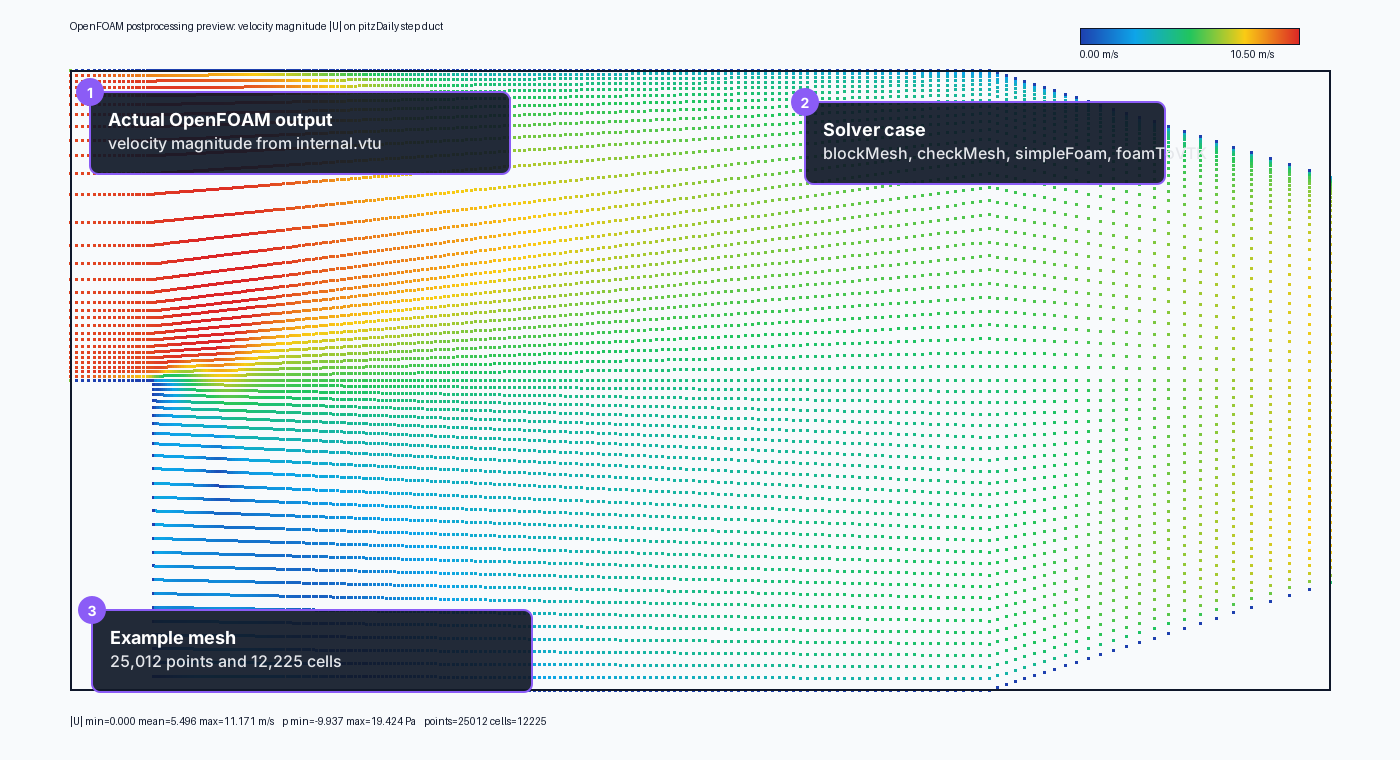
This image is the actual OpenFOAM postprocessing preview from the tutorial run. checkMesh is still the gate before trusting solver output.
What happens in the runner
- UNV meshes are converted with
ideasUnvToFoam; MSH meshes are converted withgmshToFoam. checkMeshvalidates topology and quality before the solver starts.- Steady incompressible cases use
simpleFoam; transient incompressible cases usepimpleFoam. - Completed cases are exported with
foamToVTKfor visualization. - The example mesh passed with max non-orthogonality 5.95 degrees and max skew 0.261.
Step 5: Review the CFD result
After the solver completes, inspect both the field visualization and the numerical summary. A clean result should show the requested field, a passed mesh-quality state, reasonable residual behavior, and a low flow-balance error.
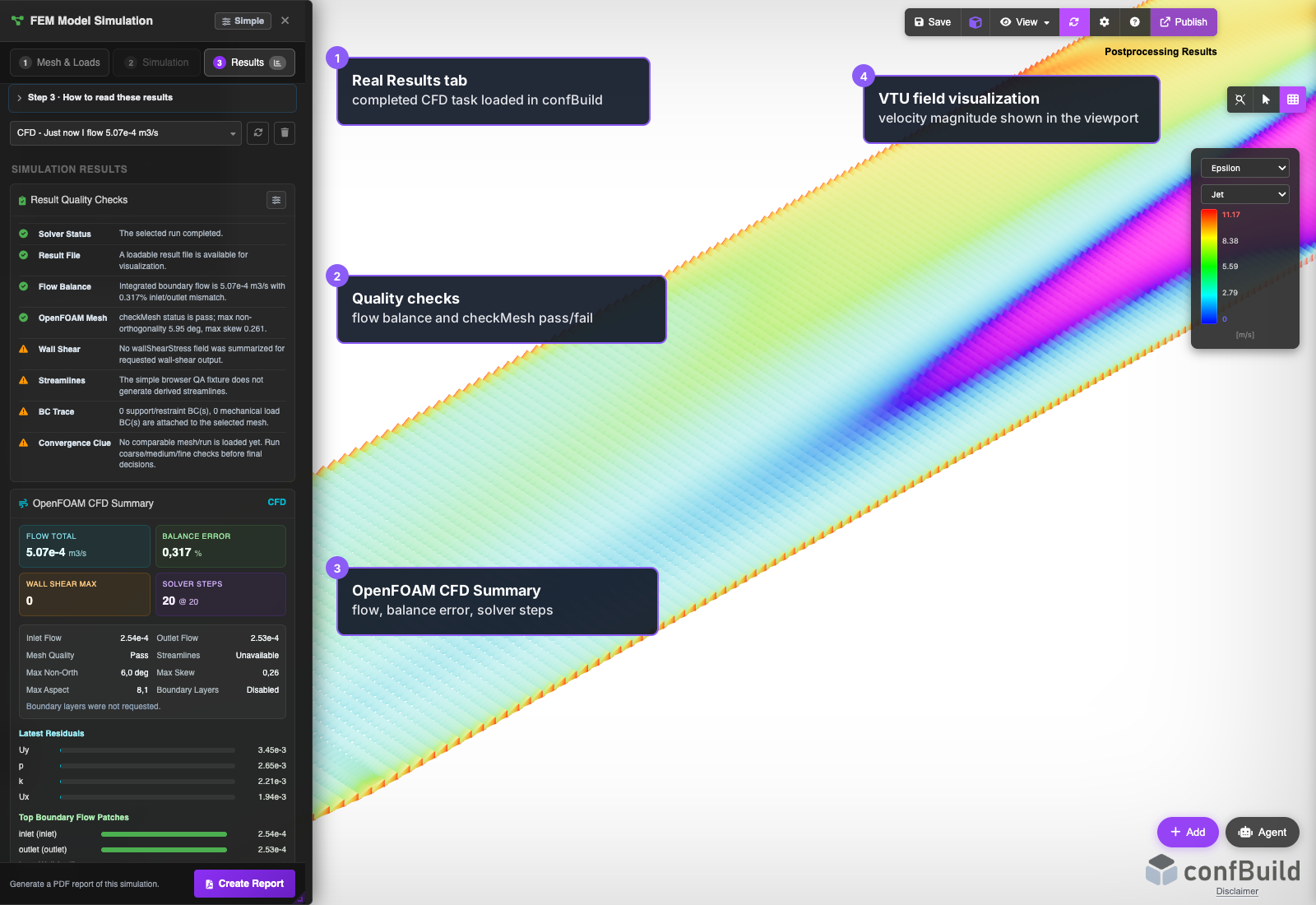
The result screenshot is loaded from the real completed CFD task. It shows a 5.07e-4 m3/s total flow and 0.317% balance error.
Result review checklist
- Check the displayed field, usually velocity magnitude or pressure.
- Review OpenFOAM mesh status and mesh-quality warnings first.
- Compare inlet and outlet flow totals to catch missing or duplicated patches.
- Inspect residuals and solver steps before trusting detailed local values.
- For this run,
simpleFoamcompleted 20 solver steps at time 20.
Supported OpenFOAM scope
The current workflow focuses on practical incompressible CFD cases that can be prepared from editor geometry and mesh metadata.
Ready
3D incompressible flow
Steady or transient cases with fluid volume meshes
Ready
Thin 2D flow
Use paired empty patches on the thin faces
Ready
Laminar, k-epsilon, k-omega SST
Select the turbulence model in the CFD setup
Ready
Inlet, outlet, wall, symmetry, far-field patches
Boundary roles are mapped from face groups
Not yet
Compressible, porous, rotating, dynamic-mesh, heat-transfer, or species cases
Keep these outside this editor workflow for now
Troubleshooting
No face groups appear
Regenerate the mesh and confirm that the selected object is the fluid domain. CFD boundaries need mesh metadata, not just visible faces.
checkMesh fails
Simplify tiny geometry, adjust mesh fineness, and reduce sliver faces before changing solver settings.
Solver setup is blocked
Check for a fluid region, non-zero inlet or far-field velocity, one pressure outlet or reference, and no duplicate patch assignments.
2D case fails
Make sure the thin front and back patches are assigned as empty and the case is configured as a 2D CFD setup.
Next steps
After the first valid run, refine only the parts of the workflow that affect the result you care about.
- Use FEM Mesh Generation to review mesh fineness, element sizing, and face-group behavior.
- Use FEM Simulation to understand the broader simulation workspace.
- Run at least one mesh-refinement comparison before using CFD values for engineering decisions.