Scripting API
Runtime scripting for spreadsheets, scenegraph motion, robots, and UI overlays
Overview
confBuild scripts run inside the live editor. You can read and write spreadsheet data, manipulate THREE.js objects directly, create reusable scene animations, control URDF robots, and even mount custom UI on top of the editor.
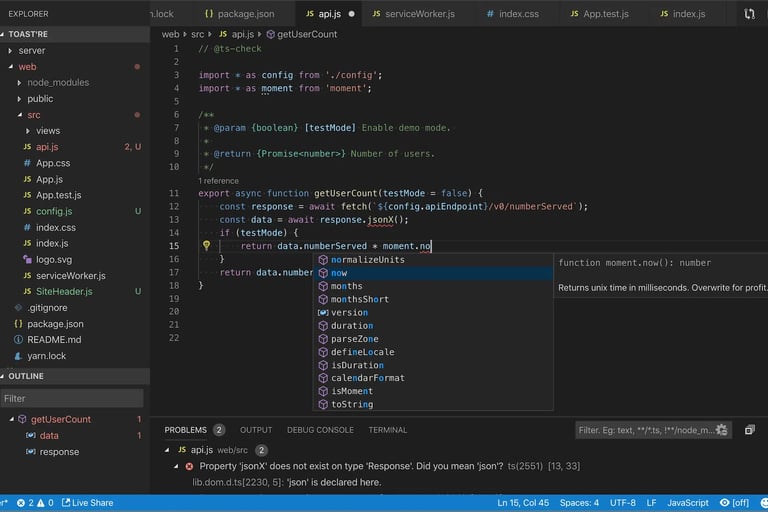
Spreadsheet Logic
Use ActiveWorkbook to read parameters, write formulas, loop through sheets, and trigger controlled model rebuilds.
Live Scenegraph Control
Use API.getSceneObject(), API.updateSceneObject(), and API.renderScene() for direct scene changes without rebuilding the spreadsheet model.
Animations and Motion
Create named scene animations, scrub their progress, or drive machines and URDF robots from JavaScript.
Custom UI and Debugging
Mount HTML, jQuery UI, or React panels in the editor and inspect logs and runtime errors directly from the script API.
Quick Start
The runtime is organized around three main entry points.
ActiveWorkbook
Spreadsheet reads, writes, ranges, and sheet helpers
API
UI updates, scenegraph helpers, animations, robots, script UI, and debugging
scene
Scene-level helpers such as connector creation and connector updates
Refresh Rules
- Call
await API.updateUI()after changing spreadsheet cells withActiveWorkbook. - Call
API.renderScene()after direct scenegraph edits when you did not rebuild the spreadsheet model. - Cell addresses are 0-based:
{ sheet: 0, row: 0, col: 0 }is the first cell. - Use double quotes in script strings for the best editor compatibility.
Minimal Example
async function projectLoaded(project) {
  const width = await ActiveWorkbook.getCellSerialized({ sheet: 0, row: 0, col: 1 });
  console.log("Project loaded:", project?.name, "current width:", width);

  await ActiveWorkbook.setCellContents({ sheet: 0, row: 4, col: 1 }, "Ready");
  await API.updateUI();
}
Spreadsheet Operations
Use ActiveWorkbook for all cell-based project logic.
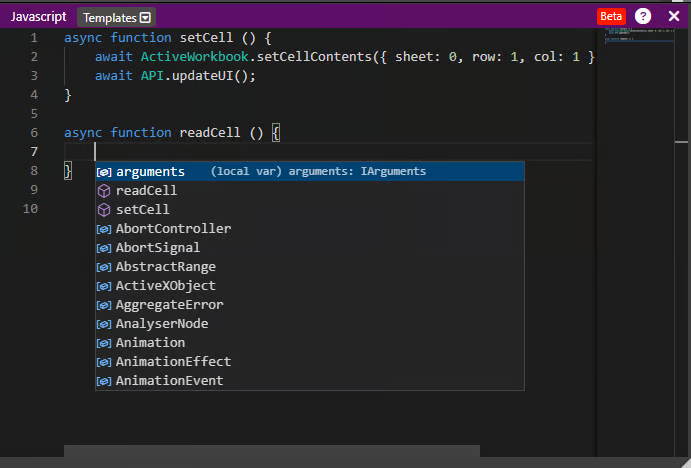
ActiveWorkbook.getCellSerialized(address)
Read the current serialized cell value
ActiveWorkbook.getCellFormula(address)
Read the cell formula
ActiveWorkbook.setCellContents(address, value)
Write a value or formula to a cell
ActiveWorkbook.getRangeValues(range)
Read a block of cell values
ActiveWorkbook.getRangeFormulas(range)
Read formulas from a range
ActiveWorkbook.getSheetDimensions(sheetId)
Return the row and column count for a sheet
ActiveWorkbook.simpleCellAddressFromString("B5", 0)
Convert a spreadsheet address string to a 0-based address object
ActiveWorkbook.simpleCellAddressToString(address, 0)
Convert an address object back into spreadsheet notation
API.getCell("B2") / API.setCell("B2", value)
Read or write an A1-style cell through a script-friendly wrapper
API.getParam(name) / API.setParam(name, value)
Read or write a named parameter row when the sheet uses parameter labels
API.batchWorkbookUpdates(callback)
Group several workbook writes and refresh the model once at the end
Example: Read, Process, and Write Cells
async function processRows() {
  const dims = await ActiveWorkbook.getSheetDimensions(0);

  for (let row = 1; row < dims.rows; row++) {
    const input = await ActiveWorkbook.getCellSerialized({ sheet: 0, row, col: 0 });
    if (!input) {
      continue;
    }

    const result = Number(input) * 2;
    await ActiveWorkbook.setCellContents({ sheet: 0, row, col: 1 }, result);
  }

  await API.updateUI();
}
Actions and Cleanup
Scripts can declare editor-visible commands and register long-lived resources that are automatically cleaned when the script reloads.
API.registerActions(actions)
Expose script commands as buttons in the script debug panel
API.disposeOnReload(disposer, label)
Register custom cleanup logic for the next script reload
API.setInterval() / API.setTimeout()
Create timers that are automatically cleared on script reload
API.on(target, eventName, handler)
Add an event listener that is automatically removed on script reload
Example: Register Commands
async function ONLOADED() {
  API.registerActions([
    { id: "openDoor", label: "Open Door", run: openDoor },
    { id: "closeDoor", label: "Close Door", run: closeDoor }
  ]);
}

async function openDoor() {
  await API.setAnimationValue("door", 1);
}

async function closeDoor() {
  await API.setAnimationValue("door", 0);
}
Live Scenegraph Helpers
Use the runtime API when you want immediate transforms, visibility changes, or metadata updates without regenerating geometry from the sheet.
API.getSelectedSceneObject()
Return the currently selected THREE.js object
API.getSceneObject(target)
Resolve an object by outputid, scene path, name, or object reference
API.getSceneObjectState(target)
Read a plain snapshot of position, rotation, scale, visibility, and parent info
API.updateSceneObject(target, updates)
Apply absolute or relative position, rotation, scale, visibility, name, or userData changes
API.renderScene(force?)
Trigger a viewport render after direct scenegraph edits
Supported updateSceneObject() Fields
You can pass position, translate, rotation, rotate, scale, scaleBy, visible, name, userData, angleUnit, and render.
Example: Nudge the Selected Part
async function nudgeSelection() {
  const selected = API.getSelectedSceneObject();
  const target =
    selected?.userData?.outputid ||
    selected?.userData?.path ||
    selected?.name;

  if (!target) {
    console.warn("No stable scene target was found");
    return;
  }

  await API.updateSceneObject(target, {
    translate: { x: 25, z: 10 },
    rotate: { z: 15 },
    angleUnit: "degrees",
    userData: { lastAction: "nudgeSelection" }
  });

  API.renderScene();
}
Scene Animations
Scene animations run on the live THREE.js scenegraph. They are ideal for machine motions, open-close behavior, travel moves, and repeated visual states.
API.animate(target, config)
Create an animation directly from a target and configuration
API.setAnimation(id, config)
Create or replace a named animation
API.playAnimation(id?, restart?)
Play one animation or all animations
API.pauseAnimation(id?)
Pause one animation or all animations
API.stopAnimation(id?, restore?)
Stop motion and optionally restore the original transform baseline
API.setAnimationProgress(id, progress)
Set progress between 0 and 1
API.setAnimationValue(id, value)
Jump to a concrete animation value between from and to
API.getAnimation(id)
Read animation state, direction, duration, and current progress
API.listAnimations(id?)
List all animations or the matching animation group
Animation Config Reference
Use property as "position", "rotation", or "scale". Set the motion axis with axis and define from, to, durationMs, optional delayMs, loop mode "once", "repeat", or "pingpong", and easing such as "linear", "easeOutQuad", or "easeInOutCubic".
Tip: Use a stable target identifier. Prefer outputid, then scene path, then object name.
Example: Pneumatic Cylinder Stroke
async function ONLOADED() {
  const selected = API.getSelectedSceneObject();
  const target =
    selected?.userData?.outputid ||
    selected?.userData?.path ||
    selected?.name;

  if (!target) {
    console.warn("No target for cylinder animation");
    return;
  }

  await API.setAnimation("pistonRod", {
    target,
    property: "position",
    axis: [0, 0, 1],
    from: 0,
    to: 120,
    durationMs: 900,
    loop: "pingpong",
    easing: "easeInOutCubic",
    autoplay: false,
    restoreOnStop: true
  });

  await API.setAnimationProgress("pistonRod", 0);
}

async function playCylinder() {
  await API.playAnimation("pistonRod", true);
}

async function setCylinderStroke(strokeMm) {
  await API.setAnimationValue("pistonRod", strokeMm);
}
URDF Robots
The scripting API can load URDF robots, inspect their joints, move them by joint values, solve inverse kinematics, and follow tool paths from project scripts.
API.addRobot(urdfUrl, name, options)
Load a URDF robot into the current scene
API.listRobots()
Return manager-loaded robots and sheet-created robots as plain snapshots
API.getRobot(target)
Read robot state by ID or name
API.setActiveRobot(target)
Mark one robot as the active robot for follow-up actions
API.getRobotJoints(target)
List joints with limits, axis, and current values
API.setRobotJointValue(target, jointName, value, angleUnit)
Set one joint immediately
API.setRobotJointValues(target, values, angleUnit)
Set multiple joints at once
API.animateRobotJointValues(target, values, durationMs, angleUnit, steps)
Animate joints smoothly over time
API.updateRobot(target, updates)
Change robot base position, rotation, scale, or visibility
API.getRobotEndEffectorPosition(target)
Read the current end effector position
API.solveRobotIK(target, position)
Solve inverse kinematics for a target TCP position
API.followRobotPath(target, path)
Follow an array of TCP waypoints with optional timing per point
API.homeRobot(target)
Reset robot joints to the home pose
API.stopRobotMotion()
Stop the current robot motion run
API.removeRobot(target)
Remove one robot from the scene
API.clearRobots()
Remove all managed robots
Toolhead and TCP Positioning
API.solveRobotIK() currently solves for the end-effector position, not a full orientation target. For precise toolhead orientation, combine TCP target positions with explicit wrist joint values or a follow-up joint pose adjustment.
For process moves, define an approach, work, and retract point and run them as a path rather than jumping straight to the work point.
Example: Run a TCP Path
async function runRobotPath() {
  const robots = API.listRobots();
  const robot = robots[0];

  if (!robot) {
    console.warn("No URDF robot is loaded in this project");
    return;
  }

  const joints = API.getRobotJoints(robot.id);
  console.log("Available joints:", joints.map((joint) => joint.name));

  if (joints.length > 0) {
    await API.animateRobotJointValues(robot.id, {
      [joints[0].name]: 20
    }, 500, "degrees", 24);
  }

  const tcpApproach = { x: 650, y: 0, z: 980, time: 300 };
  const tcpWork = { x: 650, y: 0, z: 900, time: 400 };
  const tcpRetract = { x: 650, y: 0, z: 1020, time: 300 };

  await API.followRobotPath(robot.id, [tcpApproach, tcpWork, tcpRetract]);

  const ee = API.getRobotEndEffectorPosition(robot.id);
  console.log("Final TCP position:", ee);
}
Custom Script UI
Scripts can add lightweight interface layers directly on top of the editor. This is useful for status panels, custom tools, dialogs, and debug helpers.
API.requireLibrary(name)
Load supported runtime libraries such as "jquery", "jquery-ui", "react", or "babel"
API.loadExternalScript(url, globalName?)
Load any external script and optionally wait for a global export
API.loadExternalStyle(url, id?)
Attach an external stylesheet
API.createScriptMountPoint(mountId, options)
Create an absolute or fixed-position mount element
API.removeScriptMountPoint(mountId)
Remove a specific script UI mount
API.clearScriptUi()
Remove every mount point created by the current script
API.createReactRoot(mountId, options)
Create a React root after loading React automatically
API.renderReactComponent(mountId, elementFactory, options)
Render a React element or component factory into a mount
API.renderReactComponentFromSource(mountId, source, options, componentName)
Compile React component source with Babel and render it
API.openJQueryDialog(mountId, html, dialogOptions, mountOptions)
Create a jQuery UI dialog from script code
Example: Open a jQuery UI Status Dialog
async function showScriptStatus() {
  await API.openJQueryDialog(
    "script-status",
    "<p>Robot setup complete.</p><p>Ready for path execution.</p>",
    { title: "Script Status", width: 360 },
    { target: "body", top: 24, right: 24 }
  );
}
Example: Render a Small React Panel
async function showReactPanel() {
  await API.renderReactComponent(
    "react-status",
    (React) => React.createElement(
      "div",
      {
        style: {
          padding: "14px",
          borderRadius: "12px",
          background: "#111827",
          color: "#ffffff",
          boxShadow: "0 10px 30px rgba(0,0,0,0.25)"
        }
      },
      "Scene animation ready"
    ),
    { target: "body", right: 24, bottom: 24, width: 260 }
  );
}
Events and Lifecycle Hooks
Scripts can react to editor state, selection changes, and direct object interaction.
Project and Selection Events
projectLoaded(project)
Called when a project finishes loading
projectActivated(project)
Called when a project becomes active
ONLOADED()
Called when the DOM and script environment are ready
projectSelected(project)
Called when a project or subproject is selected
projectDeselected(project)
Called when a project or subproject is deselected
sheetSelected(sheet)
Called when a sheet becomes selected
sheetDeselected(sheet)
Called when a sheet is deselected
connectorSelected(connectorData)
Called when a connector is selected in the scene
Mouse Events on 3D Objects
ONENTER(object)
Hover enter helper used in many project scripts
ONLEAVE(object)
Hover leave helper used in many project scripts
MouseClick(object)
Called when an object is clicked
MouseEnter(object)
Called when the cursor enters an object
MouseLeave(object)
Called when the cursor leaves an object
MouseMove(object)
Called while the cursor moves over an object
MouseDown(object)
Called when the mouse button is pressed on an object
MouseUp(object)
Called when the mouse button is released on an object
Example: Highlight on Hover
const originalColors = new Map();

function MouseEnter(object) {
  if (!originalColors.has(object.uuid) && object.material?.color) {
    originalColors.set(object.uuid, object.material.color.getHex());
  }

  object.material?.color?.set?.("#ff6600");
  object.material?.emissive?.set?.("#221100");
  API.renderScene();
}

function MouseLeave(object) {
  const originalColor = originalColors.get(object.uuid);
  if (originalColor && object.material?.color) {
    object.material.color.setHex(originalColor);
  }

  object.material?.emissive?.set?.("#000000");
  API.renderScene();
}
Debugging
The runtime keeps a script-specific debug history and the latest captured script error so you can inspect failures without guessing.
console.log(), console.warn(), console.error()
Write labeled messages into the script console
API.getScriptDebugHistory()
Return recent structured debug entries
API.getLastScriptError()
Return the last captured runtime error with location and excerpt
API.clearScriptDebugHistory()
Reset the debug history and last error state
Example: Inspect the Last Failure
function inspectScriptState() {
  console.log("Debug history:", API.getScriptDebugHistory());
  console.log("Last script error:", API.getLastScriptError());
}
Best Practices
These patterns keep scripts predictable, fast, and easy to debug.
- Use
ActiveWorkbookonly for data and geometry changes that really require a model rebuild. - Use
API.batchWorkbookUpdates()when a script changes several cells at once. - Use
API.registerActions()for commands that users should run from the script debug panel. - Use
API.on(),API.setInterval(), orAPI.disposeOnReload()for listeners and timers so reloads clean them up. - Use
API.updateSceneObject()andAPI.setAnimation()for smooth runtime motion instead of writing spreadsheet cells every frame. - Prefer stable scene targets:
outputidfirst, then scene path, then object name. - Discover real robot names and joint names with
API.listRobots()andAPI.getRobotJoints()before issuing robot commands. - For robot process moves, plan toolhead motion as approach, work, and retract poses.
- Keep
console.log()statements in early script drafts. They make debugging much easier. - Use the Scripts Editor Workflow tutorial if you want a screenshot-based walkthrough of the editor UI.