Scripting API
Scripting made simple for powerful configurators
Overview
confBuild provides powerful scripting capabilities to create interactive 3D configurators using a VBA-like JavaScript API.
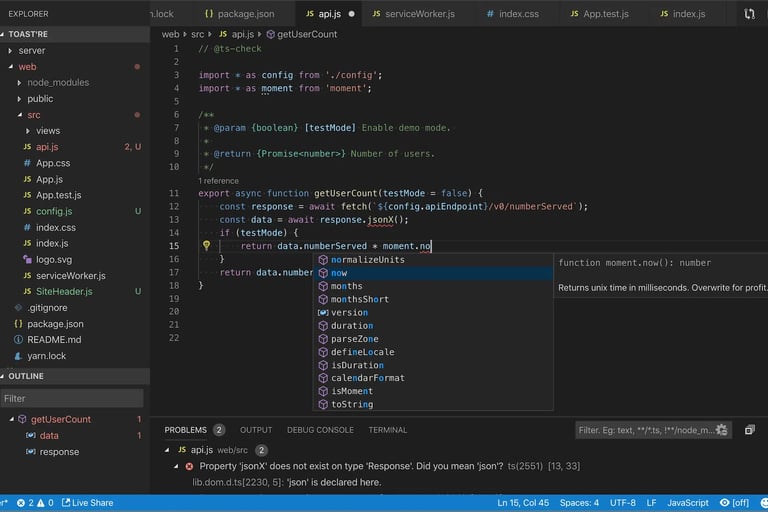
3D Model Scripting
Enhance your 3D configurators with powerful scripting capabilities using our VBA-like JavaScript API. Make 3D scenes interactive and dynamic.
UI Customization
Build custom user interfaces for your configurators using intuitive tools. Full support for jQuery and React integration.
Excel Integration
Seamlessly connect your Excel sheets to create dynamic, data-driven 3D models. Optimize data through loops and automation.
About the API
The Scripting API is a JavaScript-inspired by Excel VBA, enabling you to create interactive 3D models, optimize Excel-sheet data through loops, and add additional automation to your configurators.
Note: Use double quotes (") instead of single quotes (') for strings in your scripts.
General Usage
Learn the basics of using the scripting API.
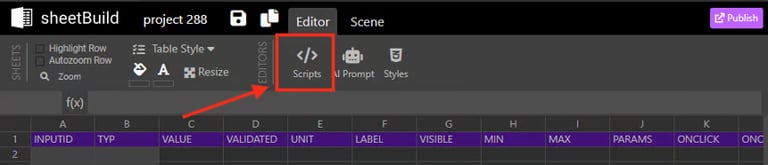
Getting Started
- Access the active project via
ActiveWorkbook - Read and write cell values programmatically
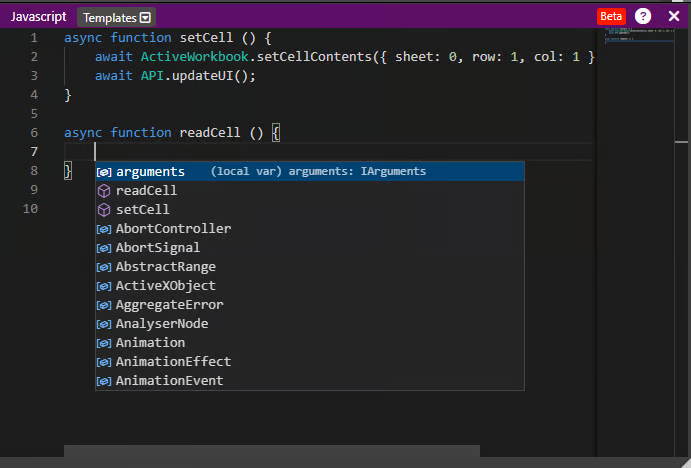
- Open context menu with Ctrl+Space for code suggestions
- Select from predefined templates to get started quickly
Important: After editing cell values, always call API.updateUI(); to update the user interface.
Example: Interactive Color Change
This example shows how to change an object's color when the mouse enters and leaves:
async function enteractor(object) {
  console.log("Mouse entered:", object);
  object.material.color.set("#ff0000");
  await API.updateUI();
}

async function leaveactor(object) {
  console.log("Mouse left:", object);
  object.material.color.set("#ebebeb");
  await API.updateUI();
}
Cell Operations
Read and write cell values programmatically.
getCellValue(address)
Get the value of a cell
getCellFormula(address)
Get the formula of a cell
setCellContents(address, value)
Set cell contents (value or formula)
getRangeValues(range)
Get values from a cell range
getRangeFormulas(range)
Get formulas from a cell range
Data Types
SimpleCellAddress: Represents a single cell location
{
  sheet: number,  // Sheet index (0-based)
  col: number,    // Column index (0-based)
  row: number     // Row index (0-based)
}
SimpleCellRange: Represents a range of cells
{
  start: { sheet: number, col: number, row: number },
  end: { sheet: number, col: number, row: number }
}
Example: Reading and Writing Cells
// Get a cell value
const value = await getCellValue({ sheet: 0, col: 0, row: 0 });

// Set a cell value
await setCellContents({ sheet: 0, col: 1, row: 0 }, "Hello World");

// Get a range of values
const range = await getRangeValues({
  start: { sheet: 0, col: 0, row: 0 },
  end: { sheet: 0, col: 5, row: 10 }
});

// Don't forget to update the UI!
await API.updateUI();
Event Handlers
React to user interactions and project lifecycle events.
Project Lifecycle Hooks
projectLoaded(project)
Called when project finishes loading
projectActivated(project)
Called when project becomes active
setConfigurationParams(sheetId, paramNames, params)
Set configuration parameters
getactiveconfig()
Get the current active configuration
saveconfig(id?)
Save the current configuration
loadconfig(configid)
Load a saved configuration
Button Click Events
You can execute JavaScript when buttons are clicked in your configurator UI. This allows you to create interactive controls that trigger custom actions.
Example: Project Initialization
async function projectLoaded(project) {
  console.log("Project loaded:", project.name);
  // Initialize default values
  await setCellContents({ sheet: 0, col: 0, row: 0 }, 100);
  await API.updateUI();
}

async function projectActivated(project) {
  console.log("Project activated:", project.name);
  // Perform setup when project becomes active
}
3D Object Interaction
Handle mouse events on 3D objects in your scene.
Available Mouse Events
MouseClick(object)
Triggered when object is clicked
MouseEnter(object)
Triggered when mouse enters object bounds
MouseLeave(object)
Triggered when mouse leaves object bounds
MouseMove(object)
Triggered when mouse moves over object
MouseDown(object)
Triggered when mouse button is pressed on object
MouseUp(object)
Triggered when mouse button is released on object
All event handlers receive the 3D object as a parameter, allowing you to modify its properties directly.
Example: Object Material Modification
// Change color on click
function MouseClick(object) {
  object.material.color.set("#660000");
}

// Highlight on hover
function MouseEnter(object) {
  object.material.emissive.set("#333333");
}

function MouseLeave(object) {
  object.material.emissive.set("#000000");
}

// Track mouse position
function MouseMove(object) {
  console.log("Mouse moving over:", object.name);
}
Helper Functions
Utility functions for common operations.
getSheetDimensions(sheetId)
Get the dimensions (rows, columns) of a sheet
simpleCellAddressFromString(address, sheetId)
Convert string address (e.g., "A1") to SimpleCellAddress
simpleCellAddressToString(address, sheetId)
Convert SimpleCellAddress to string format
searchCell(value, range)
Search for a value within a cell range
Example: Using Helper Functions
// Get sheet dimensions
const dims = await getSheetDimensions(0);
console.log("Rows:", dims.rows, "Cols:", dims.cols);

// Convert string address to object
const cellAddr = await simpleCellAddressFromString("B5", 0);
// Result: { sheet: 0, col: 1, row: 4 }

// Search for a value
const found = await searchCell("myValue", {
  start: { sheet: 0, col: 0, row: 0 },
  end: { sheet: 0, col: 10, row: 100 }
});