Build faster with confBuild
Everything you need to create 3D configurators and engineering workflows.
Start your journey
Follow a path that takes you from zero to production.
Learning Paths
Choose a path that matches your role or goal.
New to confBuild
Get started quickly and build your first configuration.
5 steps - 30 minBuild Configurators
Create reusable 3D configurators for web and internal tools.
8 steps - 2 hrsFor Developers
Use APIs, SDKs, and advanced customization options.
7 steps - 3 hrsBuild with AI agents
Let Codex or Claude create projects through the hosted OAuth MCP and inspect them in the open browser project.
Local agent workflowAgentic CAD with MCP
AI stays in the client. Customers connect only https://app.confbuild.com/mcp; the server provides prompts, secure project access, and browser screenshots.
Connect Codex or Claude
Install the local server, configure user authentication, and verify the connection.
M2Create or continue a project
Start from a description, project ID, or existing confBuild link.
M3Understand prompts and the AI boundary
See how the client automatically fetches current master prompts without calling a second model API.
Tutorials
Step-by-step tutorials to help you succeed.
Create Your First Model
Learn the basics by building your first parametric 3D model.
Beginner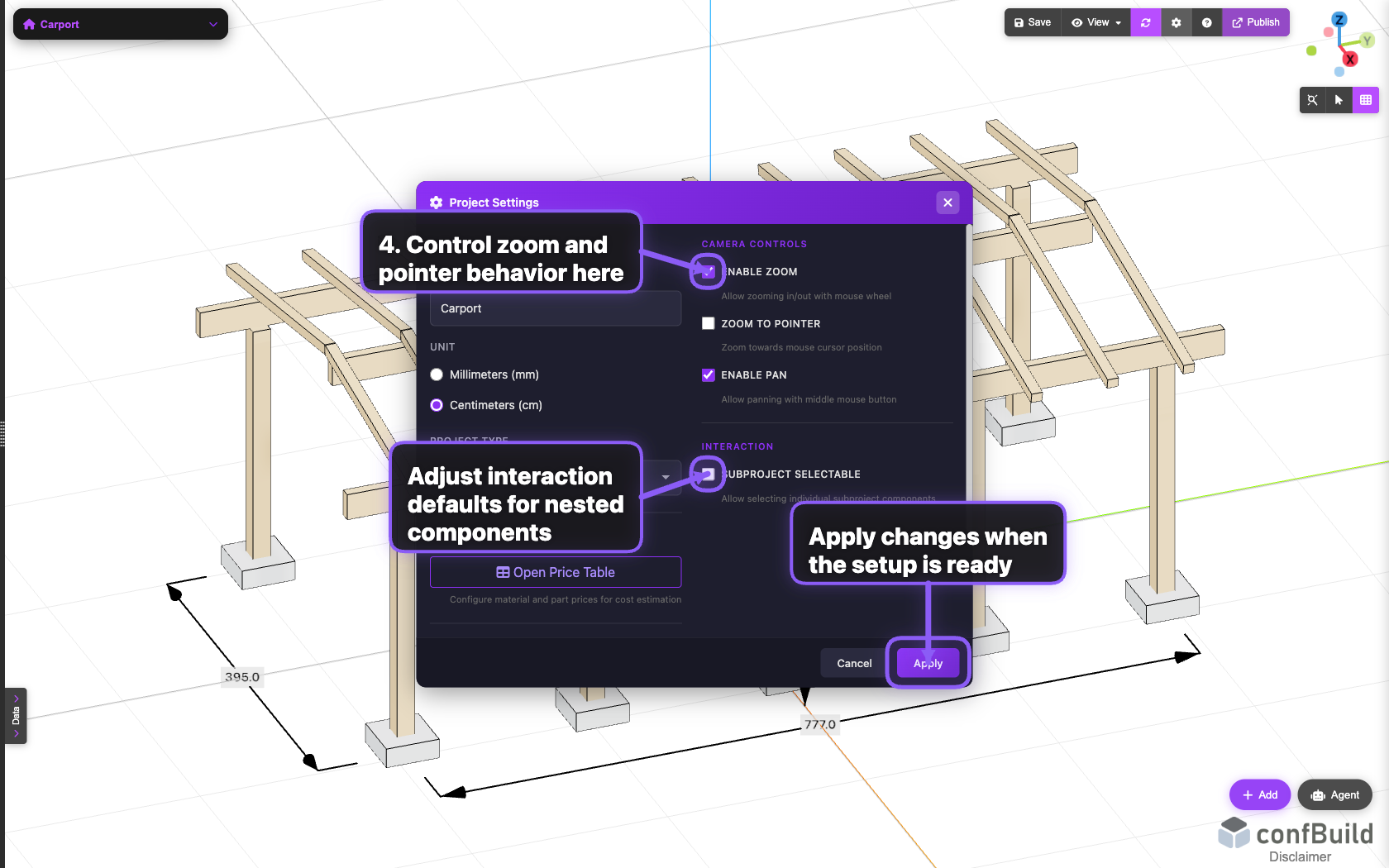
Add Parameters & Rules
Add inputs, set rules, and watch your model update in real time.
Beginner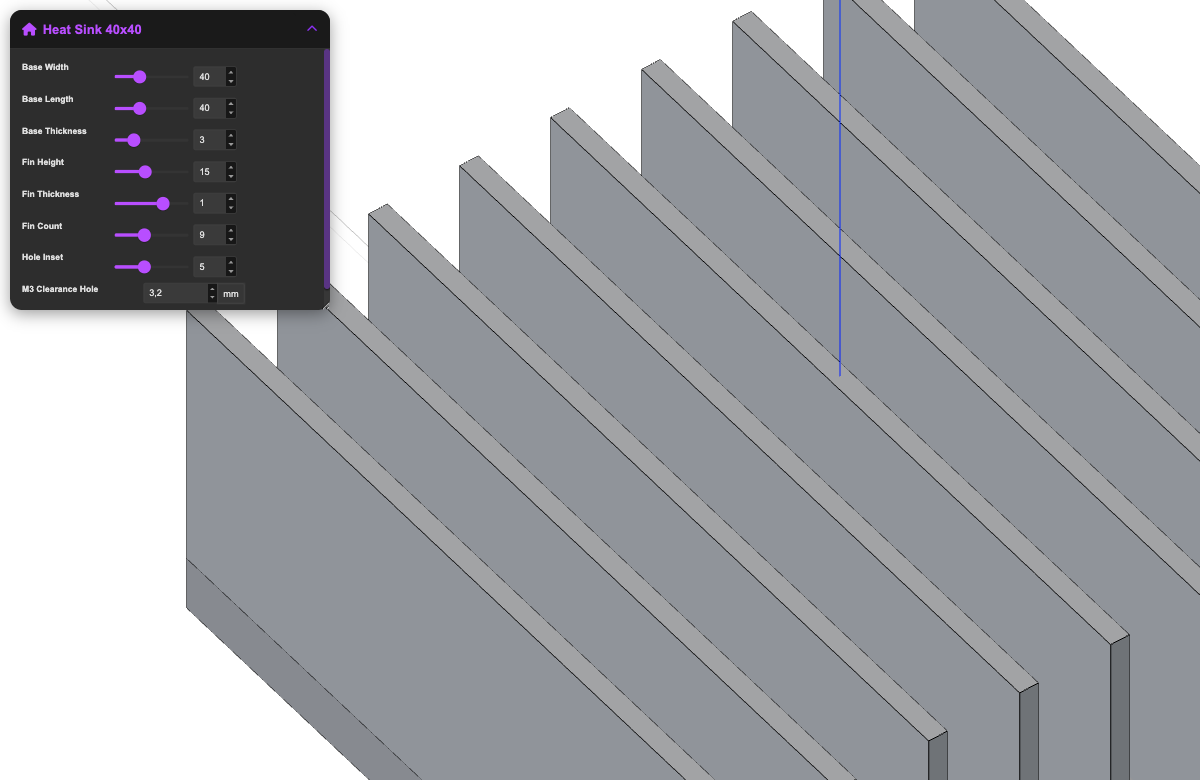
Build a Product Configurator
Combine components and logic to create a full configurator.
Intermediate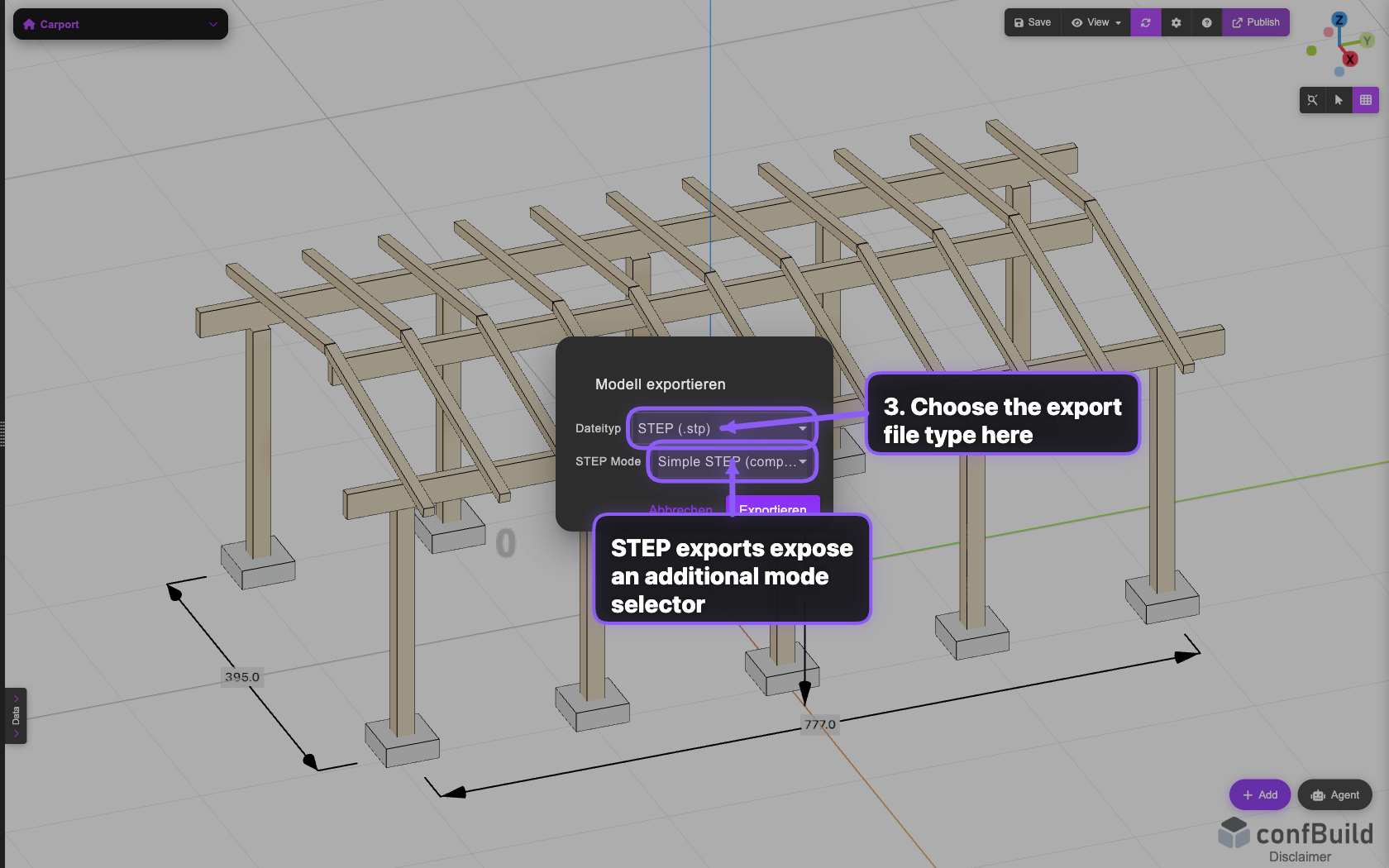
Publish to the Web
Embed your configurator on your website in minutes.
BeginnerExample Code
See how easy it is to define a parameter and use it in a rule.
// Parameter
length = 1200 mm
width = 600 mm
height = 750 mm

// Rule
volume = length * width * height
area = 2 * (length * width + length * height + width * height)Popular References
Quick access to the most used references.