Add Primitive Shapes
Real browser capture of the primitive insertion workflow
Overview
This tutorial shows how to insert standard primitive geometry from the Add Object sidebar in confBuild. The screenshots were captured from the live editor on March 6, 2026 and show the fastest path for adding cubes, cylinders, and other basic shapes into an editable project.
Project
Editable Carport project with the 3D scene already loaded
Workflow
Open Add Object, stay on Shapes, insert a primitive into the scene
Goal
Start new geometry quickly from reusable basic forms
Step 1: Open the Add Object sidebar
The primitive workflow starts from the floating Add Object button on the left side of the editor. That keeps geometry insertion available without leaving the live model view.
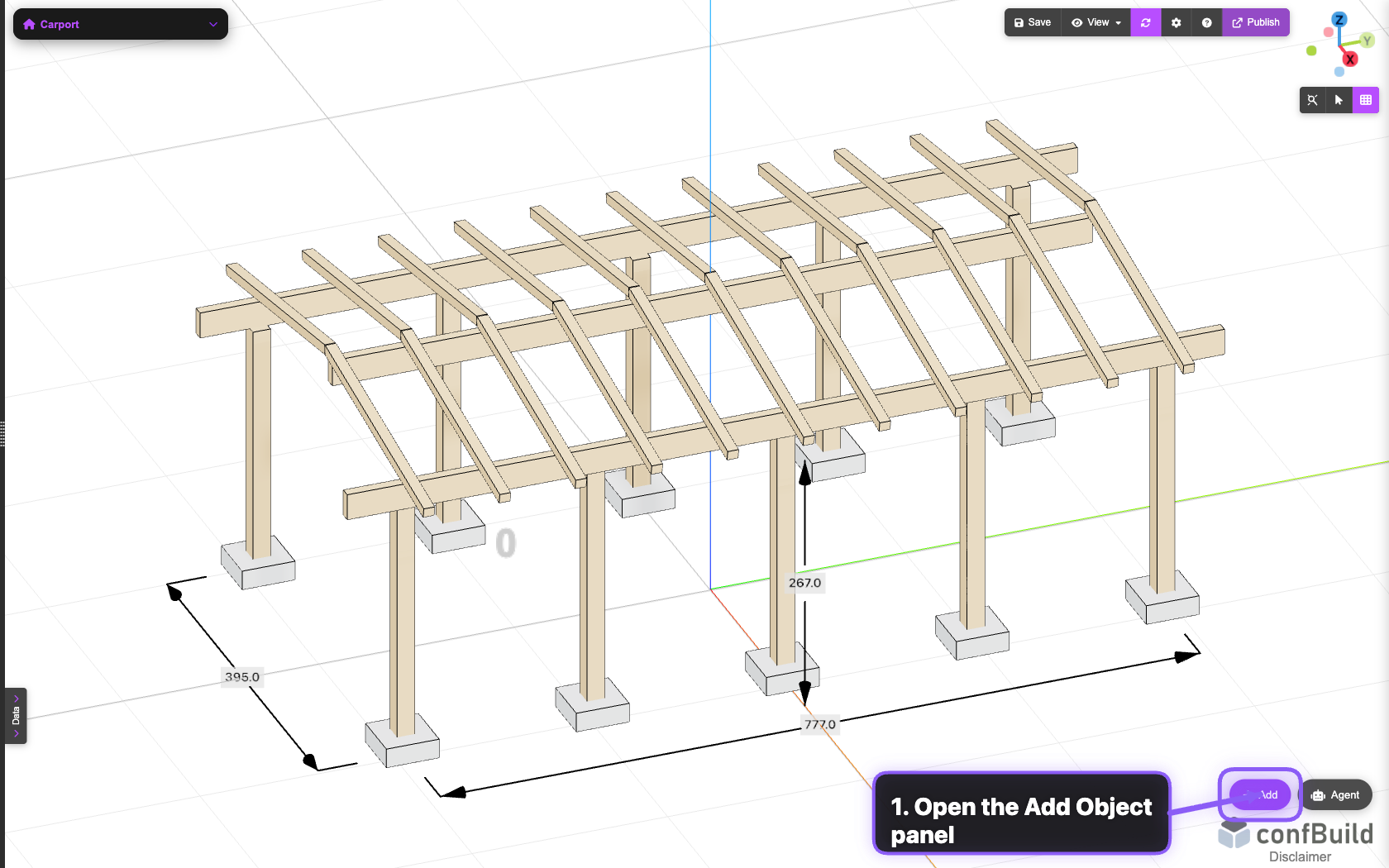
The editor remains focused on the current project while the Add Object entry acts as the main access point for new geometry.
Step 2: Stay on the Shapes view
Once the sidebar opens, keep the Shapes view active. This view groups the standard primitive library so you can start with clean reference geometry before refining it with formulas or transforms.
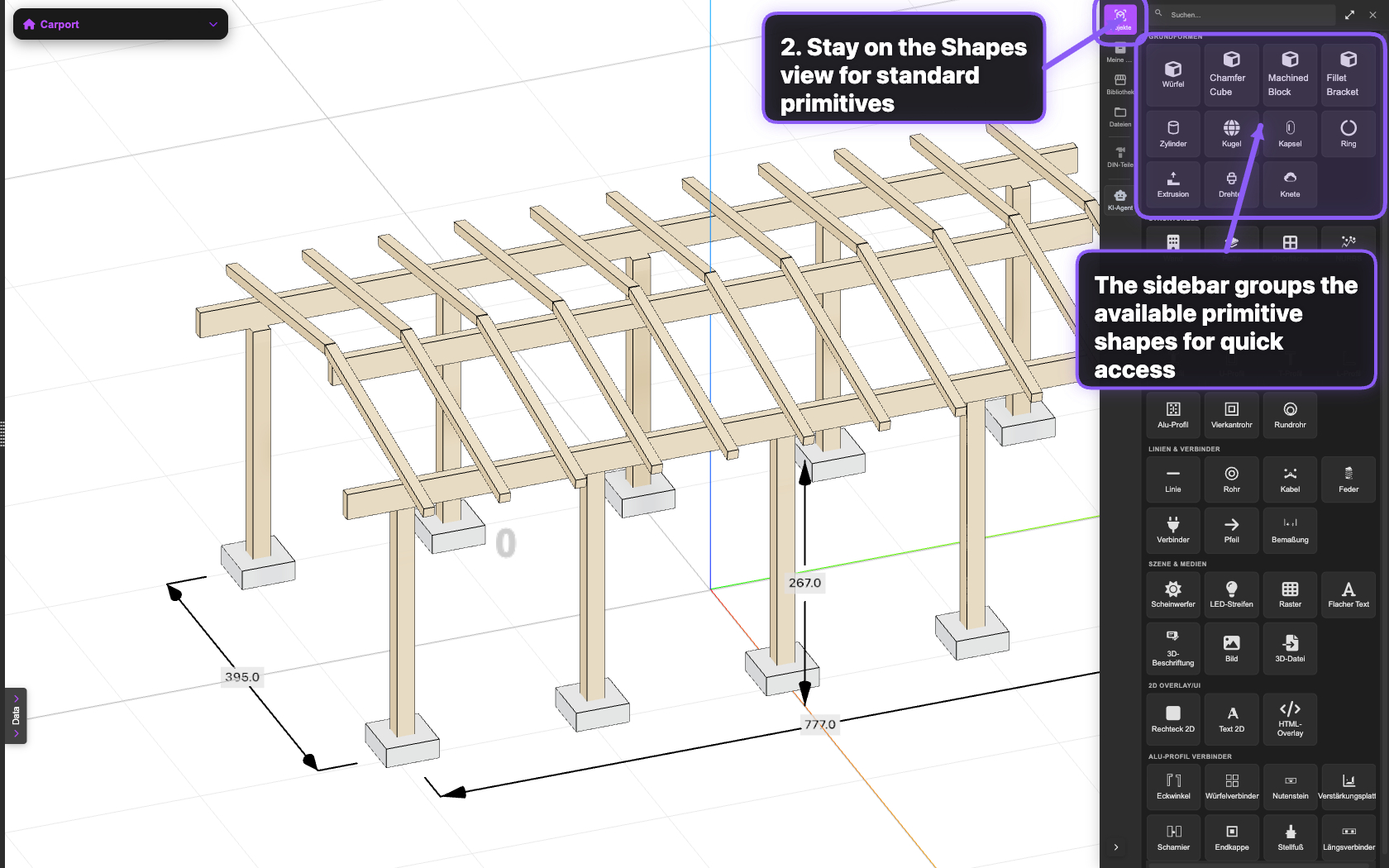
The shapes grid exposes the standard building blocks directly, while the search field helps when the library grows.
Typical uses for primitives
- Block out placeholder geometry before replacing it with custom parts.
- Create simple bodies such as boxes, tubes, cylinders, or spheres.
- Build parametric models step by step from predictable base shapes.
Step 3: Click or drag a primitive into the scene
Choose a shape from the grid and insert it directly into the current model. In practice, this is the fastest way to add reference solids that can be resized, positioned, or connected to project parameters afterwards.
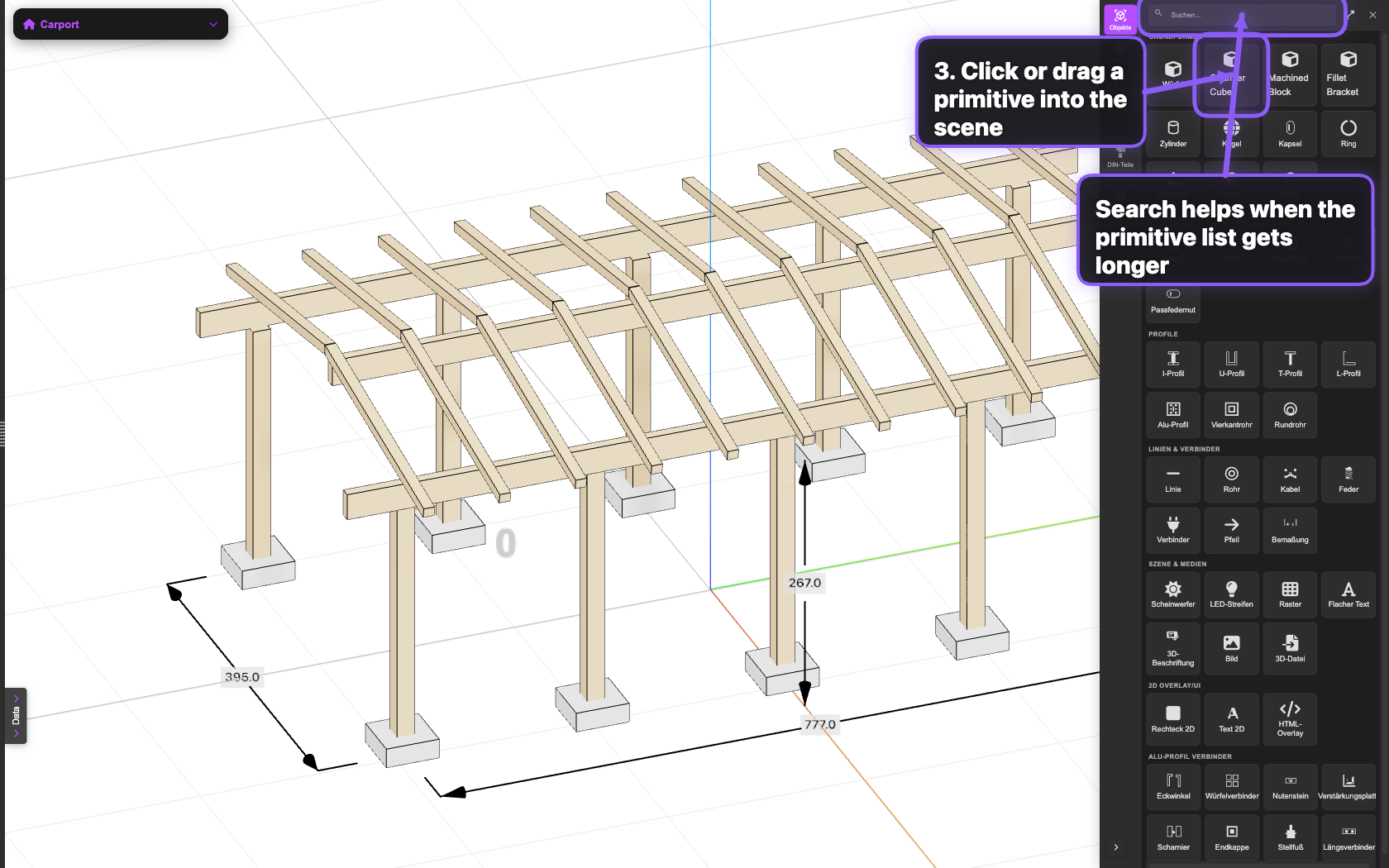
The screenshot highlights both the primitive card and the sidebar search. The next action is either a click or a drag into the live viewport.