Project Settings
Real browser capture of the Project Settings dialog
Overview
This tutorial shows the current Project Settings dialog inside the editor. The screenshots were captured directly from the real app on March 6, 2026 and focus on the key general and interaction-related project settings.
Project
Editable Carport project opened in the confBuild editor
Workflow
Open Tools, choose Project Settings, review general and camera options
Benefit
Control project name, unit, type, and interaction defaults from one place
Step 1: Open Project Settings from Tools
The dialog is available directly from the Tools menu. That gives you a fast path into the project-specific baseline settings of the current editor session.
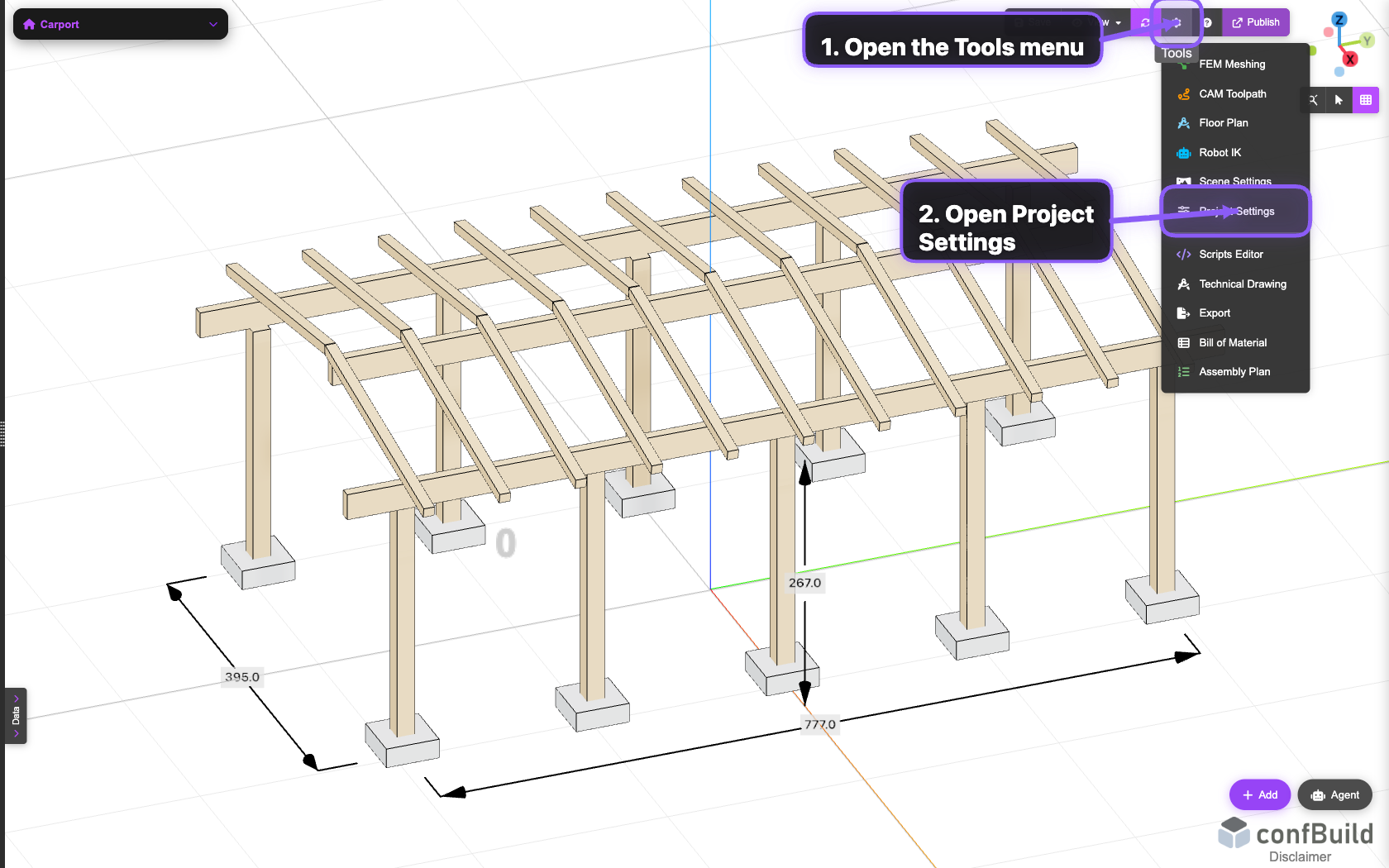
The Project Settings entry lives in the same tool group as Scripts, Technical Drawing, and other editor workflows.
Step 2: Adjust the general project definition
The left side of the dialog controls name, unit, and project type. Those values influence organisation and downstream workflows such as documentation and data exchange.
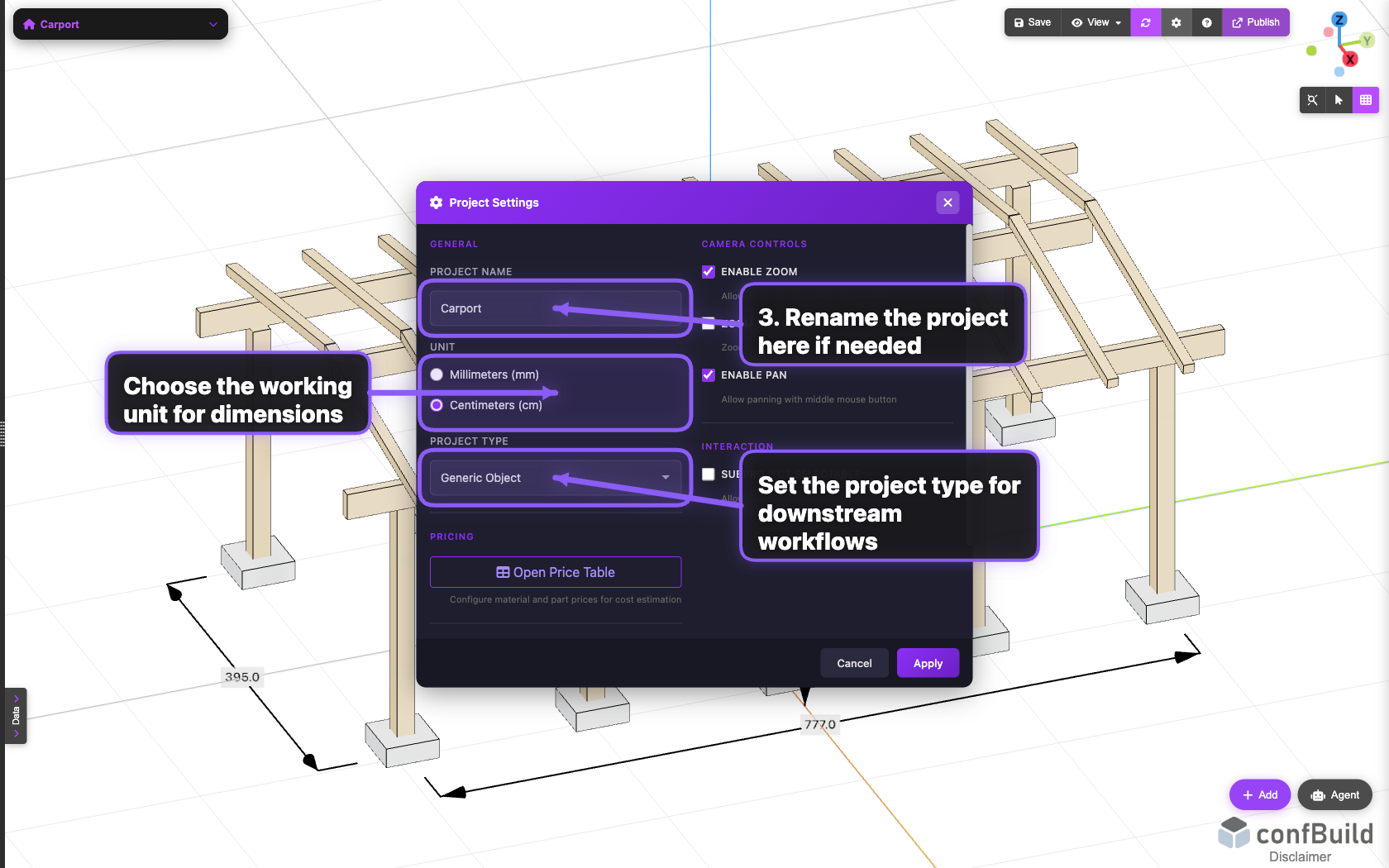
This capture marks the three key fields for the general project definition. The bounding-box information remains visible below as a quick technical reference.
Step 3: Review camera and interaction defaults
The right side controls zoom, pointer behaviour, panning, and whether subprojects can be selected individually. These settings shape how the project feels in day-to-day use.
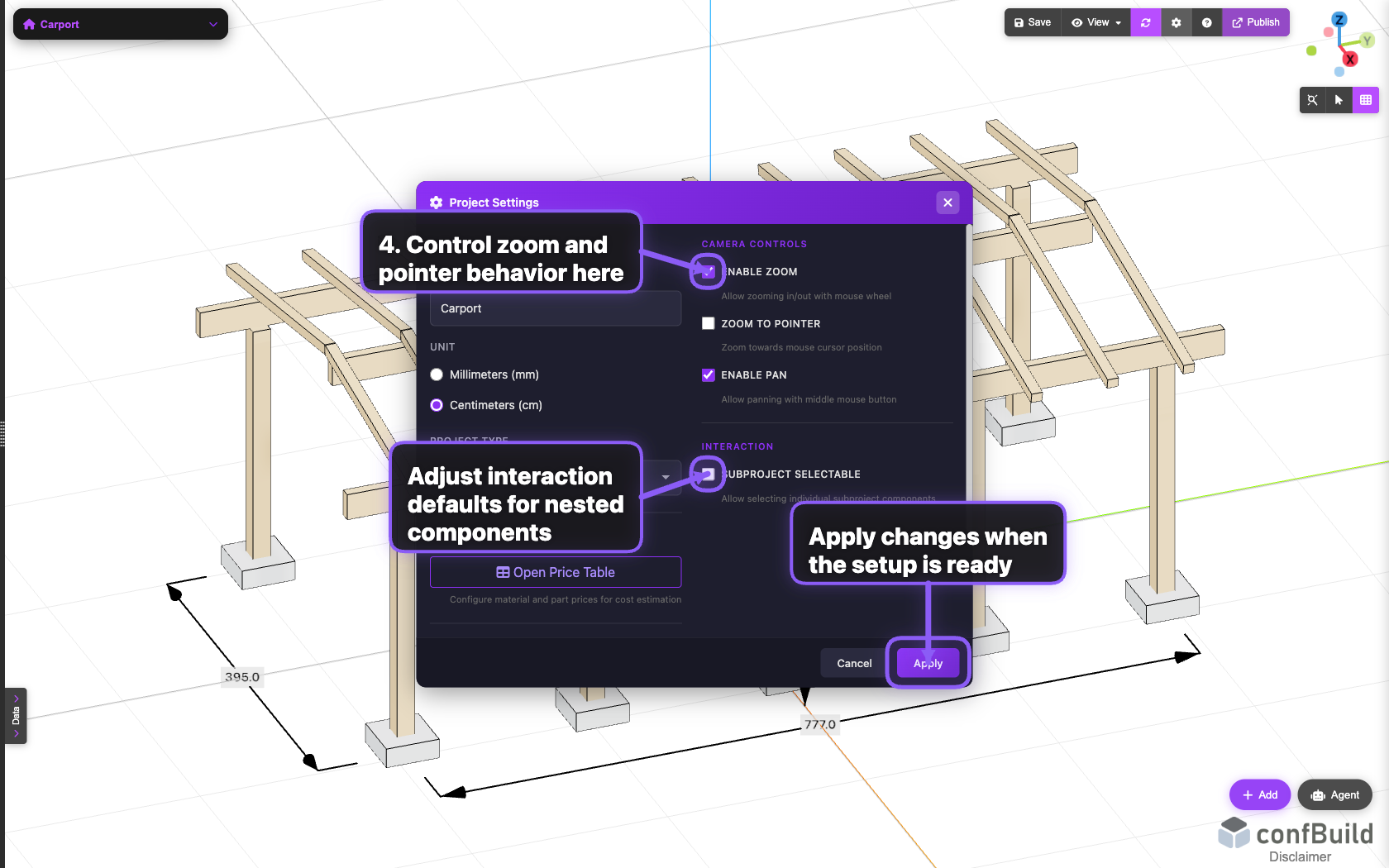
This area defines navigation and interaction logic. Once the setup is correct, use Apply to persist the configuration for the current project.