Scripts Editor
Real browser capture of the Scripts Editor workflow
Overview
This tutorial shows how to open the Scripts Editor directly from the editor and use the prompt bar to draft new JavaScript quickly. The screenshots were captured from a real browser session on March 6, 2026.
Project
Editable Carport project with the 3D model visible
Workflow
Open Tools, launch Scripts Editor, describe the desired script
Use Case
Prepare custom interactions, automation, and direct API logic
Step 1: Launch Scripts Editor from the Tools menu
Scripting starts from the Tools menu in the upper-right corner of the editor. From there you open the floating Scripts Editor directly on top of the live scene.
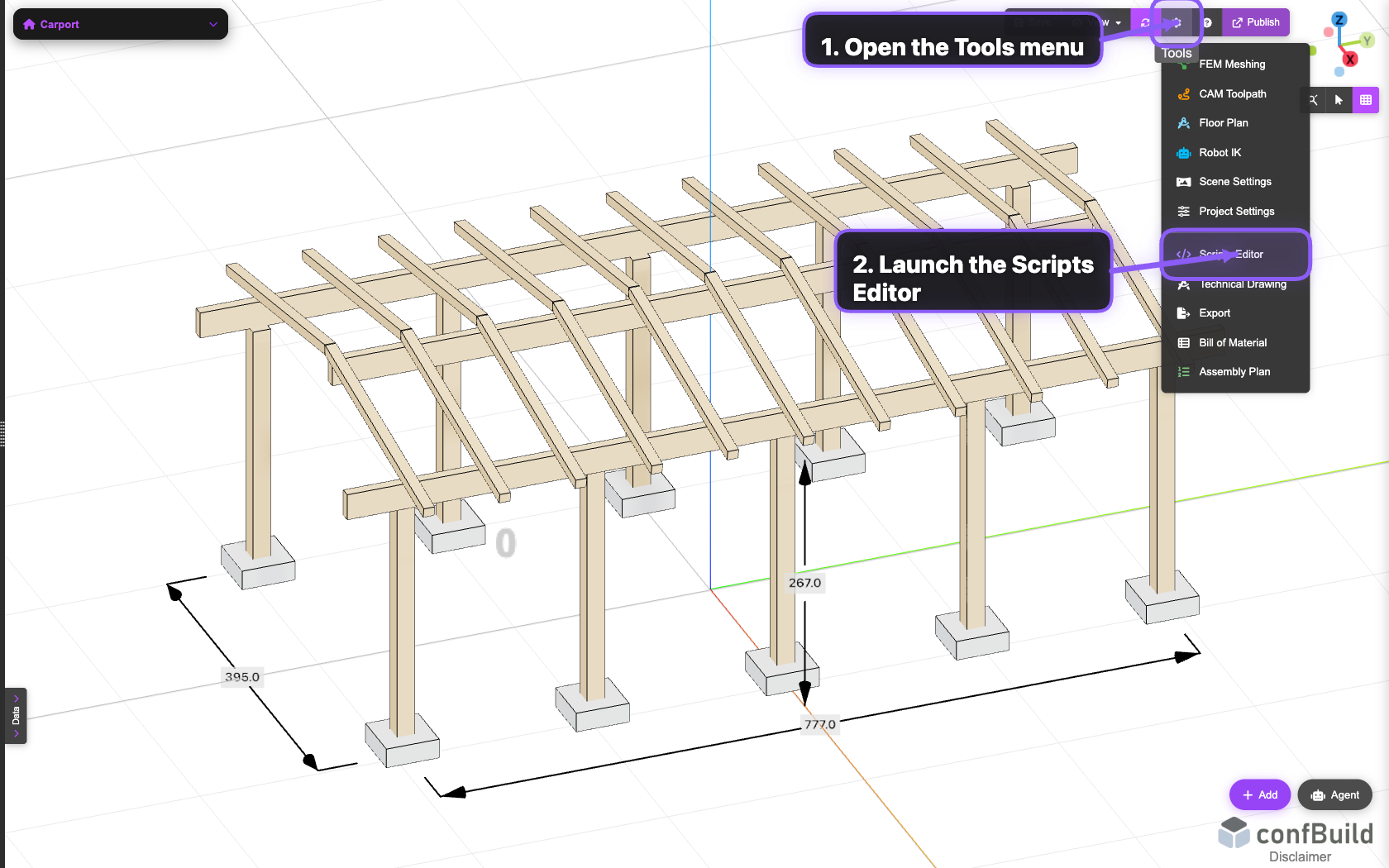
The Scripts Editor is part of the normal editor toolset, so the connection between 3D scene, spreadsheet logic, and JavaScript stays immediate.
Step 2: Review the editor area and templates
After opening it, you get the Monaco-based code area, a quick Templates entry point, and the AI prompt bar below for drafting new script ideas.
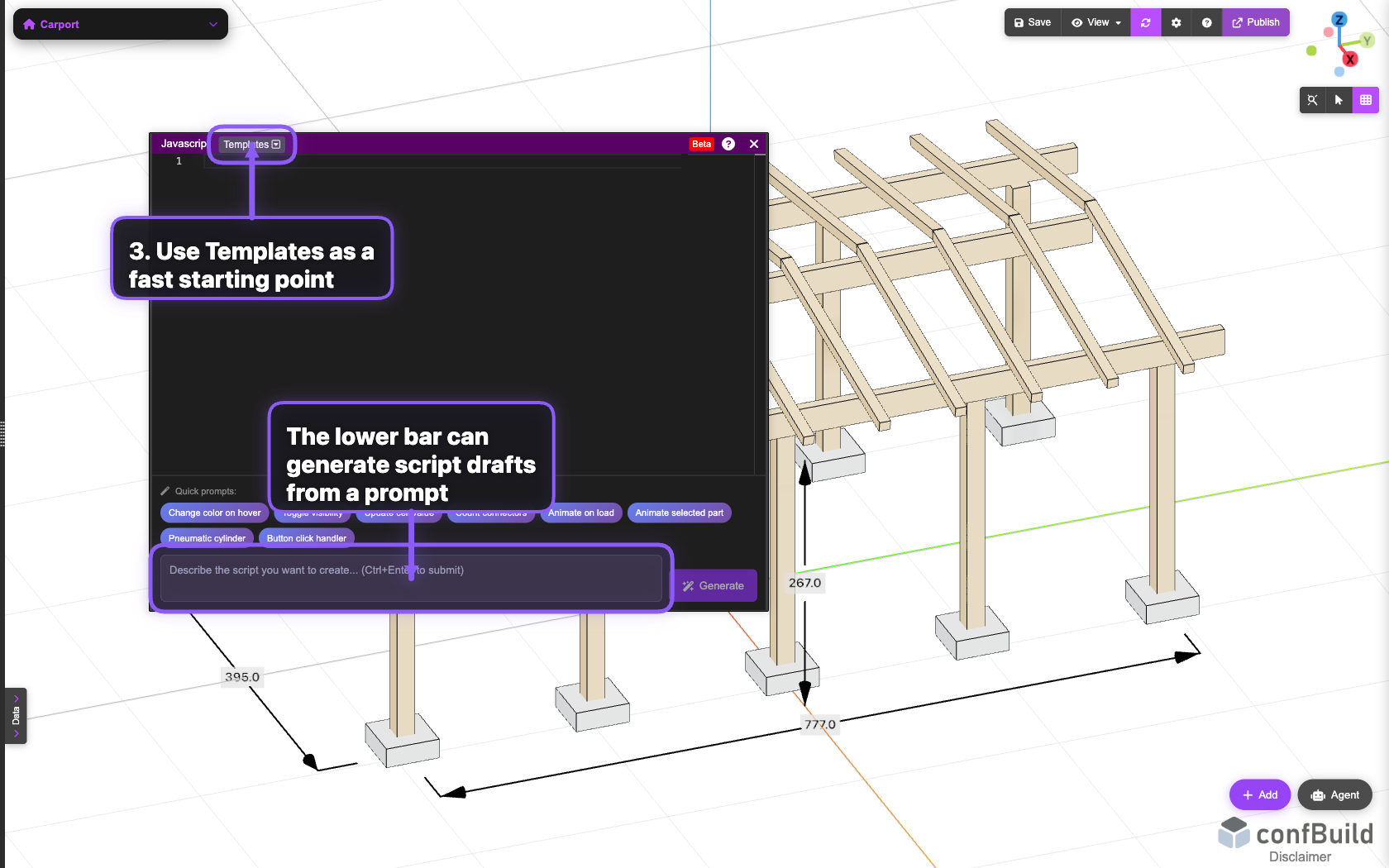
The upper area is reserved for the actual JavaScript source. The prompt bar stays visible below it so you can sketch new ideas without leaving the editor.
Step 3: Describe the script as a prompt
For fast drafts, a short plain-language description is enough. The prompt bar at the bottom can then generate a first script draft directly into the editor.
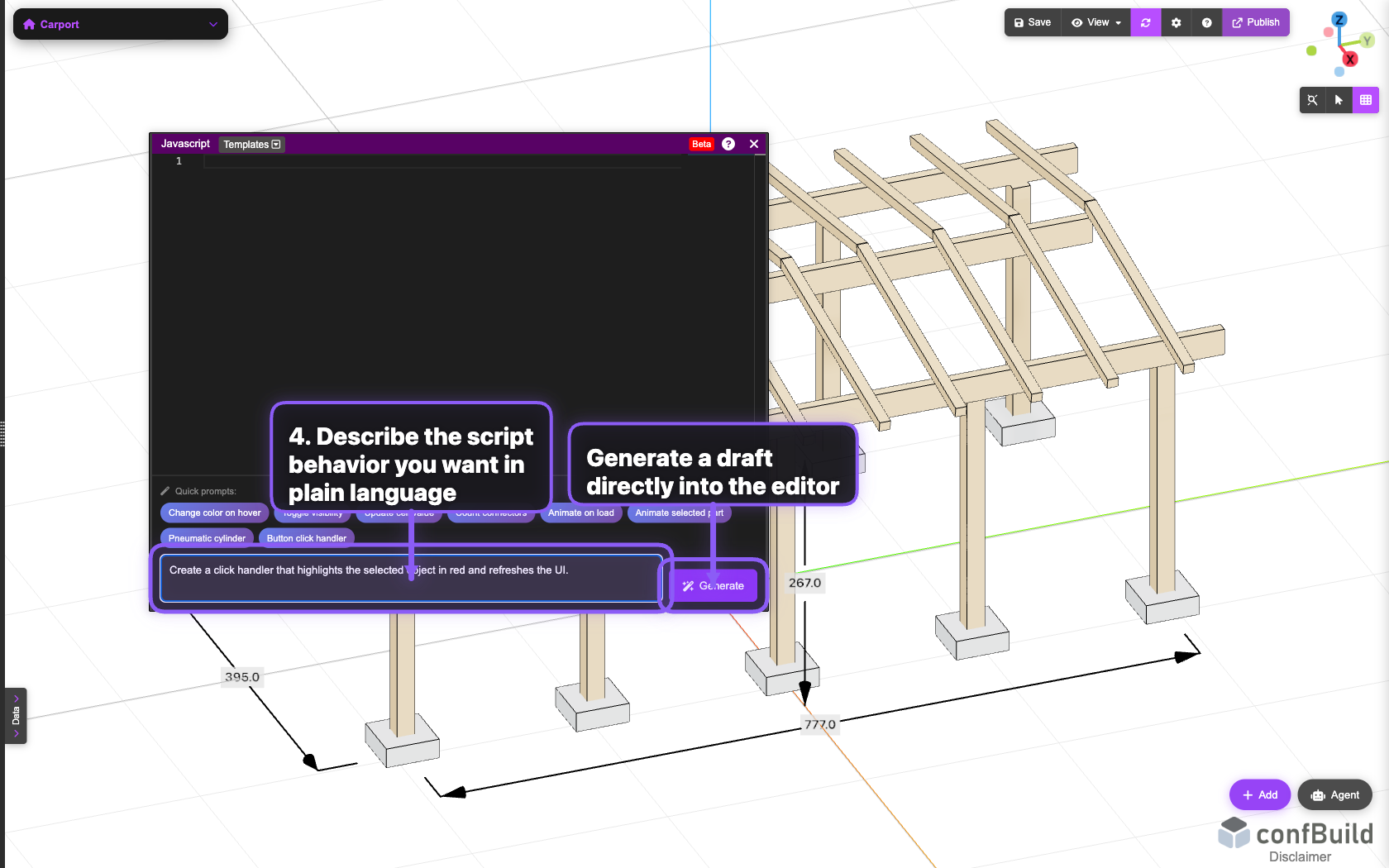
This example prepares a click handler. The Generate button writes the draft into the editor, where you can review and refine the code afterwards.
Common jobs for the Scripts Editor
- Make objects respond to click, hover, or keyboard events
- Read and write spreadsheet cells programmatically
- Automate interface updates or repetitive workflows