Technical Drawing with AI Parts
Real browser capture of the AI Parts drawing workflow
Overview
This tutorial shows the AI Parts workflow inside the Technical Drawing editor in confBuild. The screenshots were captured from the real app in a headed browser session on March 6, 2026. The same workflow applies to any editable project, not only to the example model shown here.
Model
Any editable project opened in the confBuild editor
Workflow
Open Tools, choose Technical Drawing, click AI Parts, review generated sheets
Result of this run
19 drawing pages generated from a clean Technical Drawing canvas
Step 1: Open the editable source project
Start from the finished model in the editor. The important dimensions, components, and structure should already be correct before generating drawings. Then use the Tools menu to enter the Technical Drawing workflow.
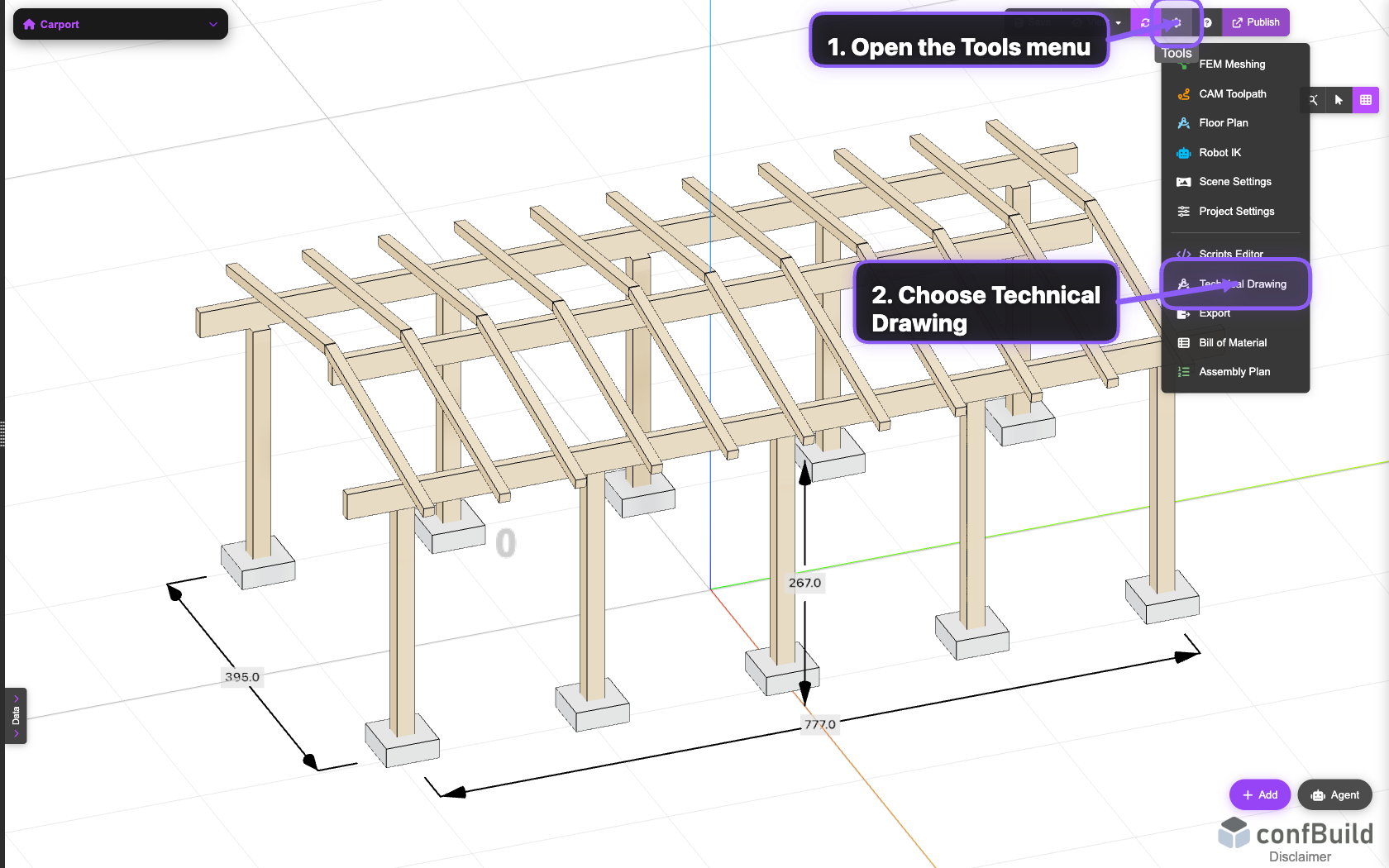
The example source project is already fully configured before drawing generation starts. In this capture the next click is Tools and then Technical Drawing.
Step 2: Open Technical Drawing and use AI Parts
After the drawing dialog opens, make sure the drawing package is empty, then use the AI Parts button in the top-right toolbar. This starts the automatic part grouping and sheet generation workflow from a clean canvas.
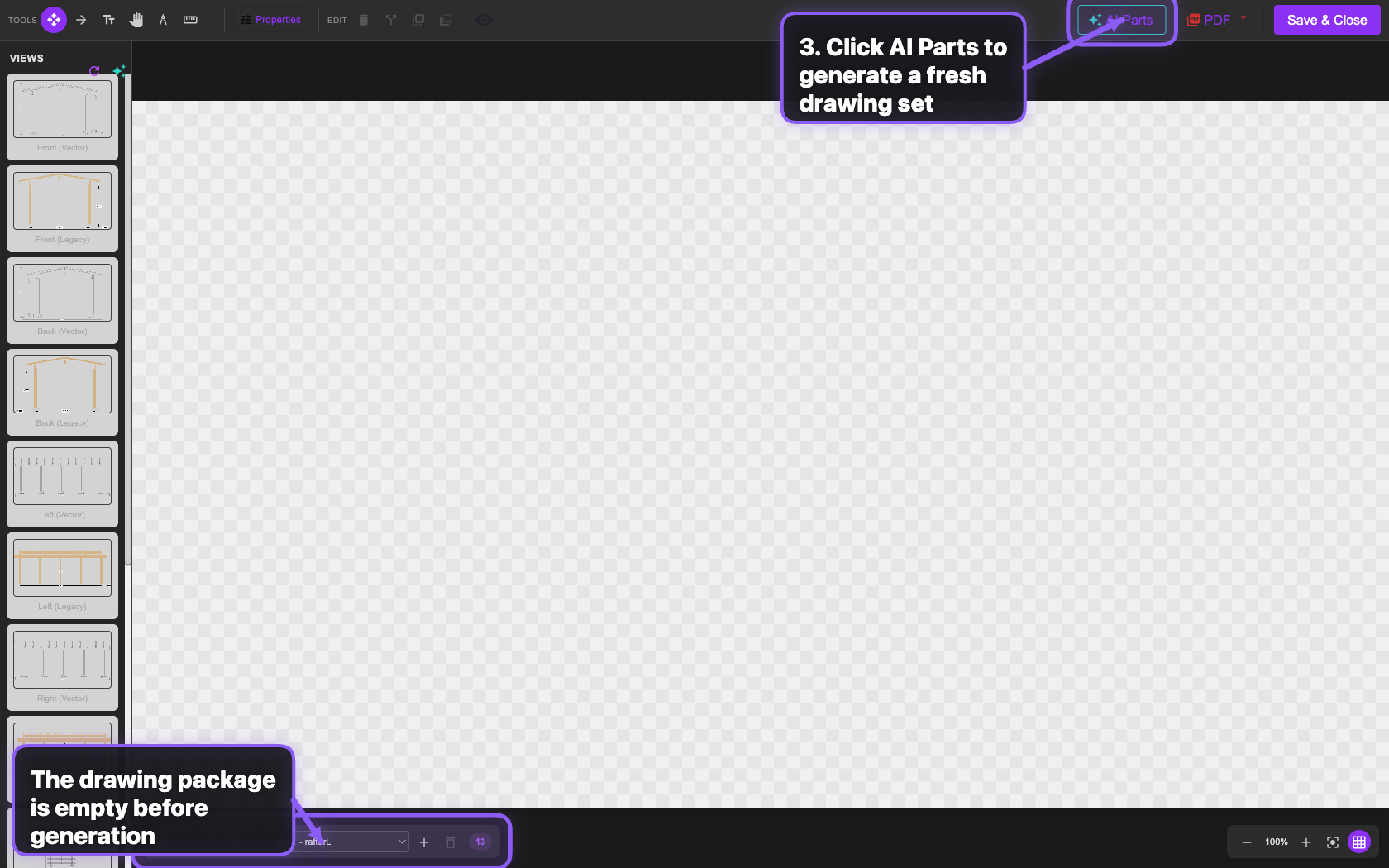
The drawing editor opens on top of the live model. This screenshot was taken after the opening animation settled and with the drawing package empty, so the next action is a clean AI Parts run.
What AI Parts does here
- Creates an assembly overview page.
- Groups repeated geometry into part-based sheets.
- Builds front, top, and isometric part views automatically.
Step 3: Let the part sheets generate
After triggering AI Parts, confBuild processes the current model and builds a fresh drawing package from the detected parts. The first sheets appear almost immediately in this example run.
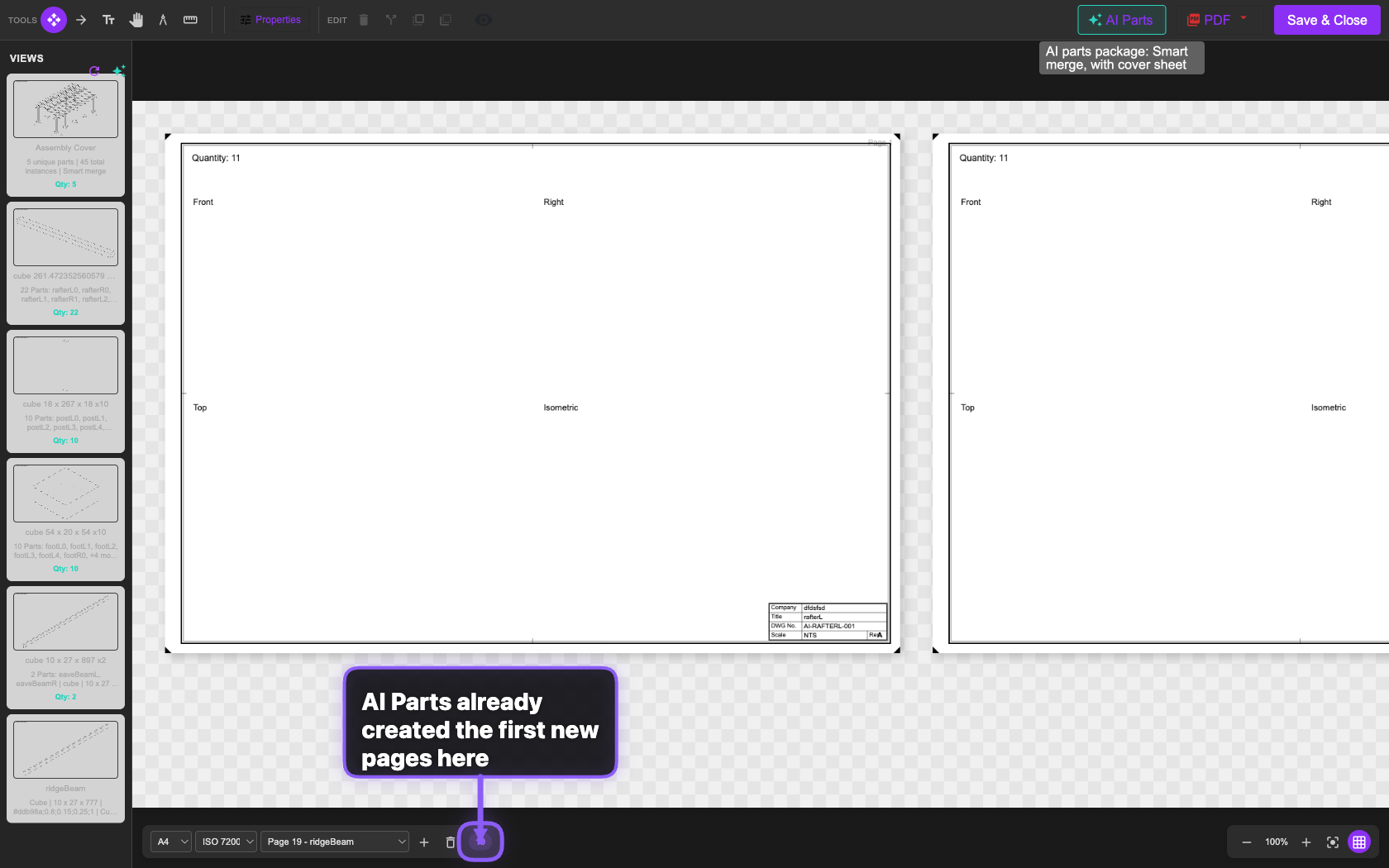
The new package starts filling in immediately. The page selector and counter show the first generated sheets arriving during the AI pass.
Step 4: Review the generated drawing set
Once the process finishes, review the result page by page. In this capture, the workflow generated a fresh set of 19 pages, and the screenshot is focused on page 1.
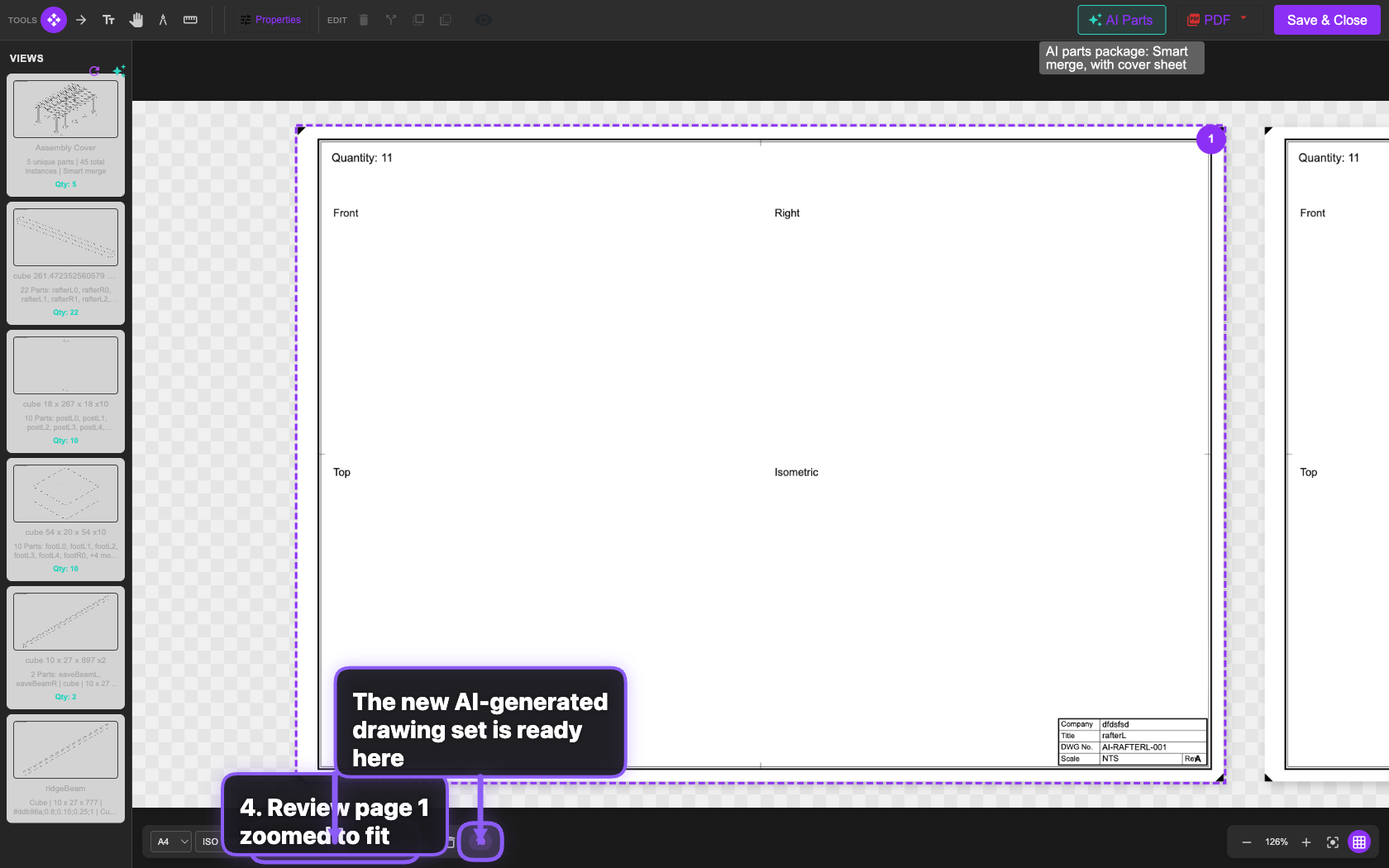
The generated set is ready for review. Page 1 is selected and zoomed to fit, while the page counter confirms the full 19-page package.
Pages
19
Fresh AI-generated drawing package
Overview page
1
Assembly overview remains part of the package
Part sheets
18 total pages including grouped sheets
Generated from the detected repeated members and beams